
Getting Started
Requirements
- Android phone running Android 10 (API 29) or later
- A target device with Bluetooth (TV, computer, streaming box, etc.)
- For Unicode text input: a computer running the PhoneRC Companion (see Companion Setup)
Install & Launch
- Install PhoneRC from the Google Play Store.
- On first launch, the app will request Bluetooth permissions. Grant all requested permissions — the app needs these to function as a Bluetooth keyboard and mouse.
- The app will start its Bluetooth HID service automatically. You'll see a persistent notification indicating PhoneRC is active.
Pairing Your Phone
- On your target device (computer, TV, streaming box, etc.), open Bluetooth settings.
- Make sure Bluetooth is enabled and set to discoverable/scanning.
- Look for your device name in the list of available devices.
- Select it to pair. Accept any pairing confirmation on both devices.
- Once paired, PhoneRC connects automatically. The top bar shows the connected device name.
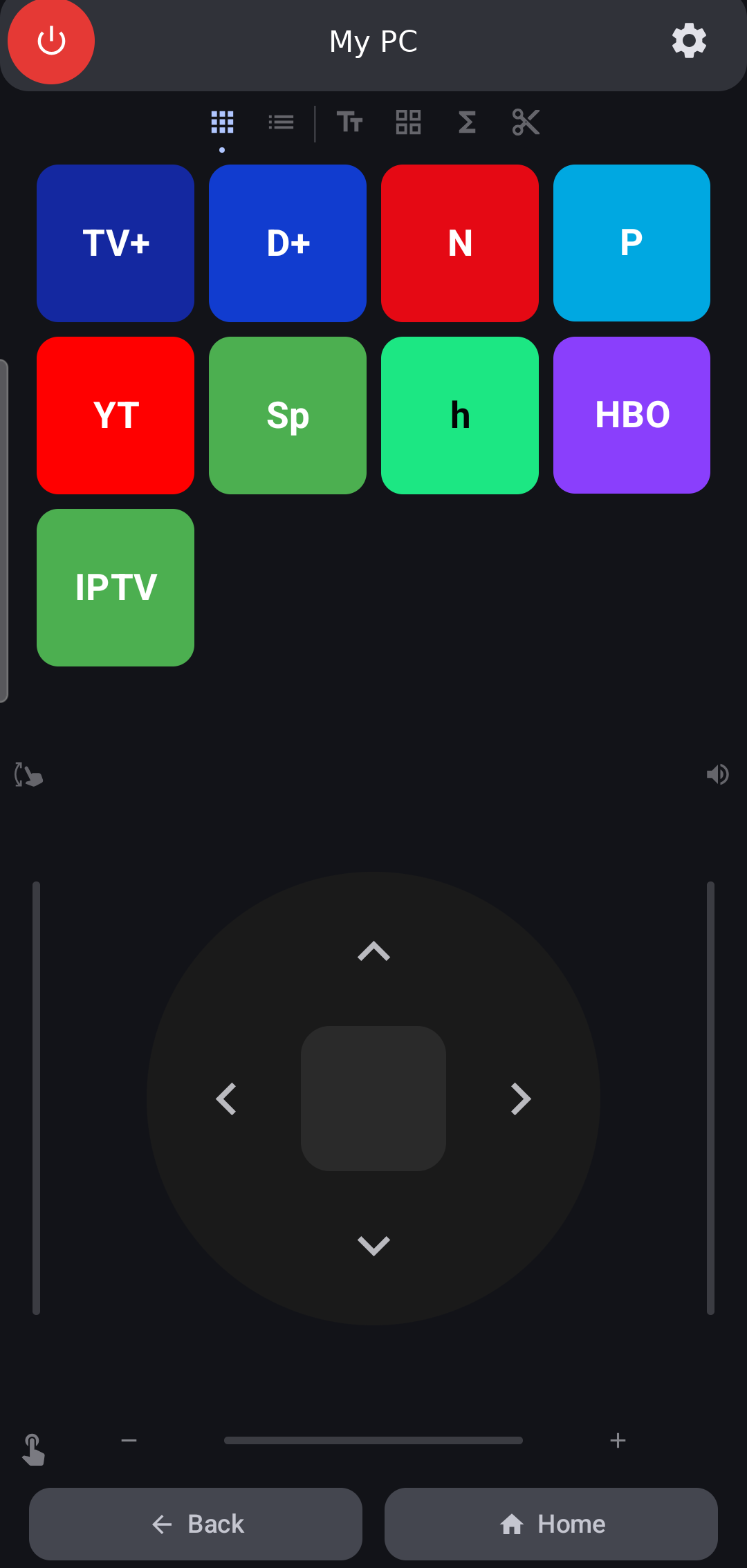
PhoneRC top bar showing the connected device name.
App Overview
The app is laid out like a physical TV remote control:
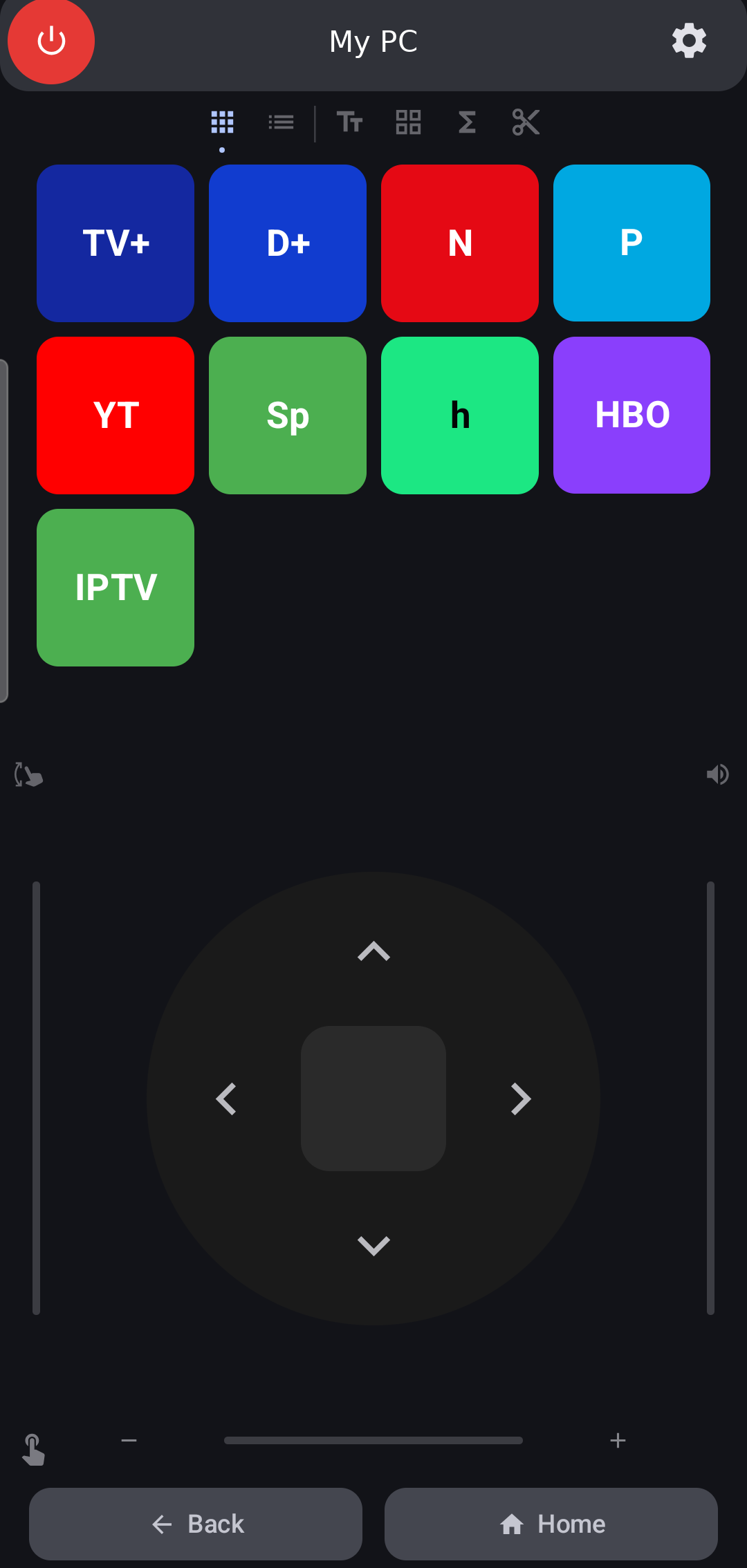
Full-screen capture showing the main layout with the App Shortcuts page visible.
Top Bar
| Button | Action |
|---|---|
| Red circle (Power) | Sends power/logout command (Ctrl+Cmd+Q on Mac, Power key on Windows/Linux) |
| Connection Status | Shows the name of the currently connected device |
| Gear icon | Opens Settings dialog |
Bottom Bar
| Button | Action |
|---|---|
| Back | Sends ESC key |
| Home | Sends Home key |
Page Indicator
The row of dots between the swipeable pages and the touchpad shows which page you're on. Swipe left or right to navigate between 6 available pages.
TV Remote Pages
Page 1: App Shortcuts
A grid of streaming app launcher buttons with brand colors. Tap a button to launch the corresponding app or website on your connected device.
| Button | Default Action |
|---|---|
| TV+ | Apple TV+ |
| Disney+ | Disney+ |
| Netflix | Netflix |
| Prime | Prime Video |
| YouTube | YouTube |
| Spotify | Spotify |
| Hulu | Hulu |
| HBO | HBO Max |
| IPTV | Launches IPTV player (Kodi by default in Companion config) |
These buttons send keyboard shortcuts (Ctrl+Shift+Alt + a key) that the Companion maps to URLs. See Companion Setup for details.
The page also includes a + tile for adding your own app shortcut buttons. Custom buttons appear in the same grid and can be edited or deleted later.
IPTV Shortcut (Kodi Default)
PhoneRC includes a dedicated IPTV shortcut that sends Ctrl+Shift+Alt+I.
- In the default Companion configuration, this shortcut launches Kodi as the IPTV app.
- macOS default command:
open -a Kodi - Windows default command:
start "" "C:\Program Files\Kodi\kodi.exe" - Linux default command:
kodi
If Kodi is installed in a non-default location, update the IPTV entry in shortcut-launcher/config.json.
Long-press any existing button to customize its label, key, and modifiers. Tap the + tile to add a new custom app button. See Customizing Buttons.
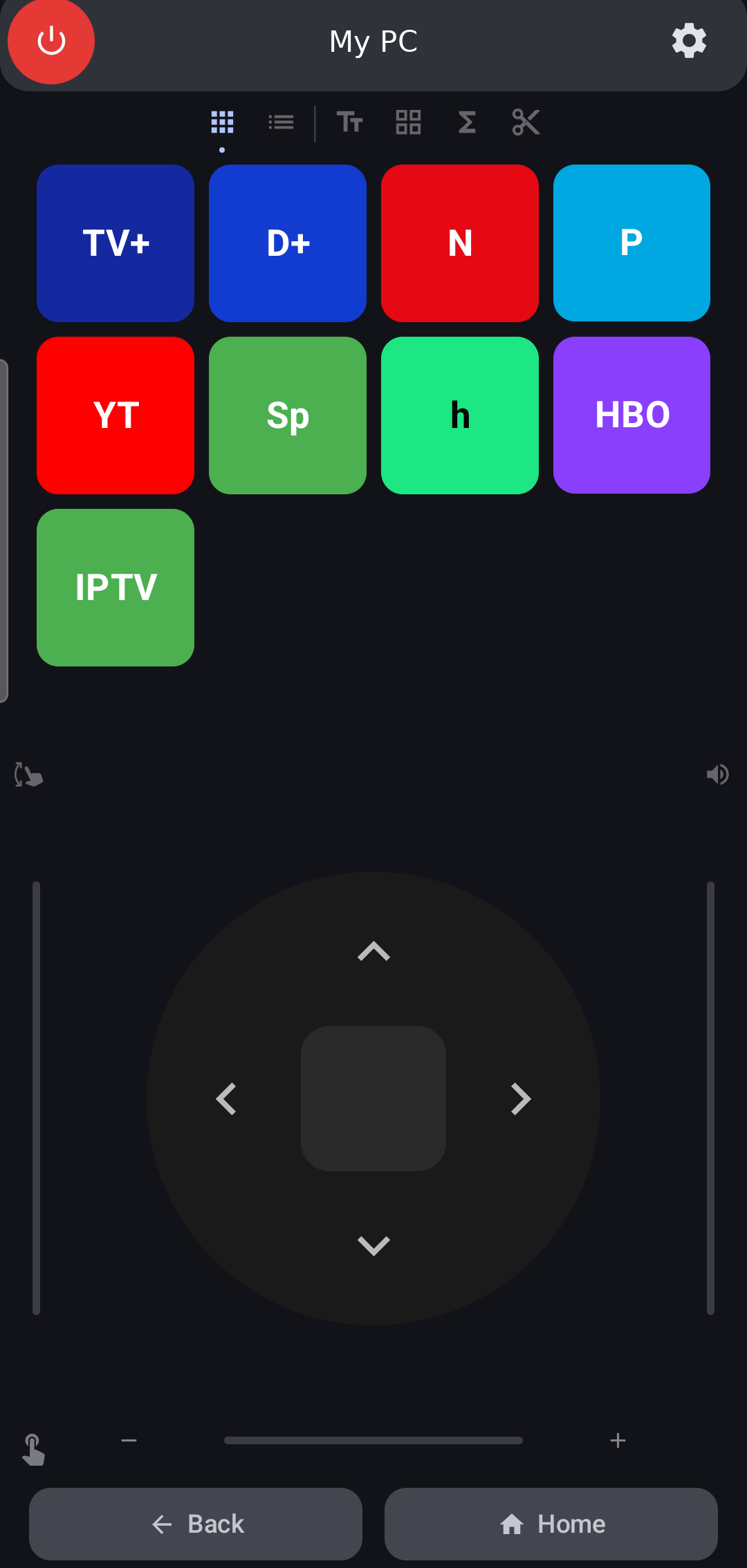
App Shortcuts page showing streaming app buttons, brand colors, and the + tile for adding custom shortcuts.
Page 2: Channel & Media Controls
Designed for TV and media player control with an all-in-one media layout:
- Top Row Controls — 123 (Channel) opens a 0-9 overlay for entering TV channel numbers, FULL (Fullscreen) sends fullscreen toggle, Subs (CC Icon) sends subtitle toggle, and Info (i Icon) sends info overlay.
- Middle Section — Additional customizable channel shortcut tiles
- Bottom Row (Playback) — Previous Track, Play/Pause, Next Track rocker buttons
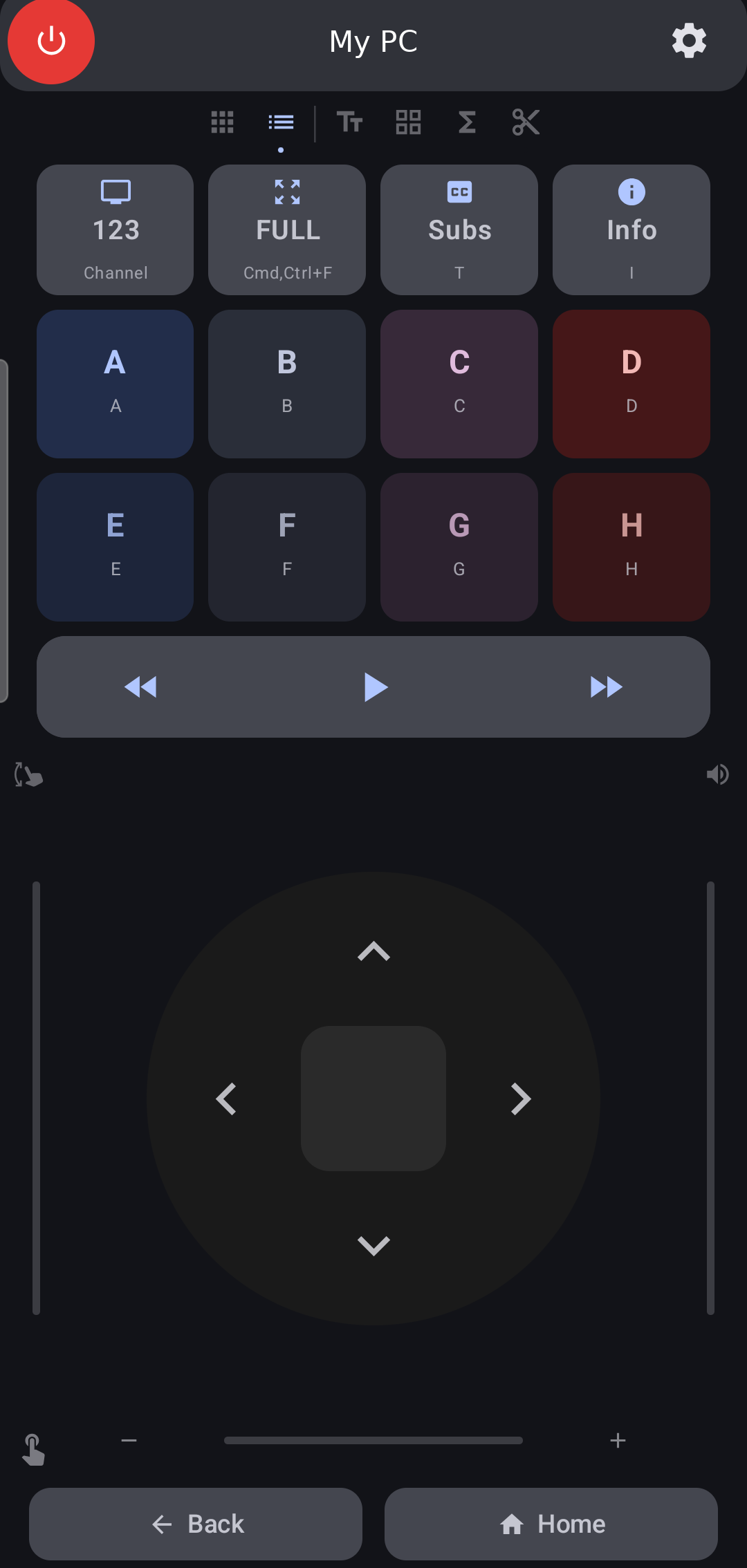
Channel Controls page showing number pad button, fullscreen, subs, info, and playback controls.
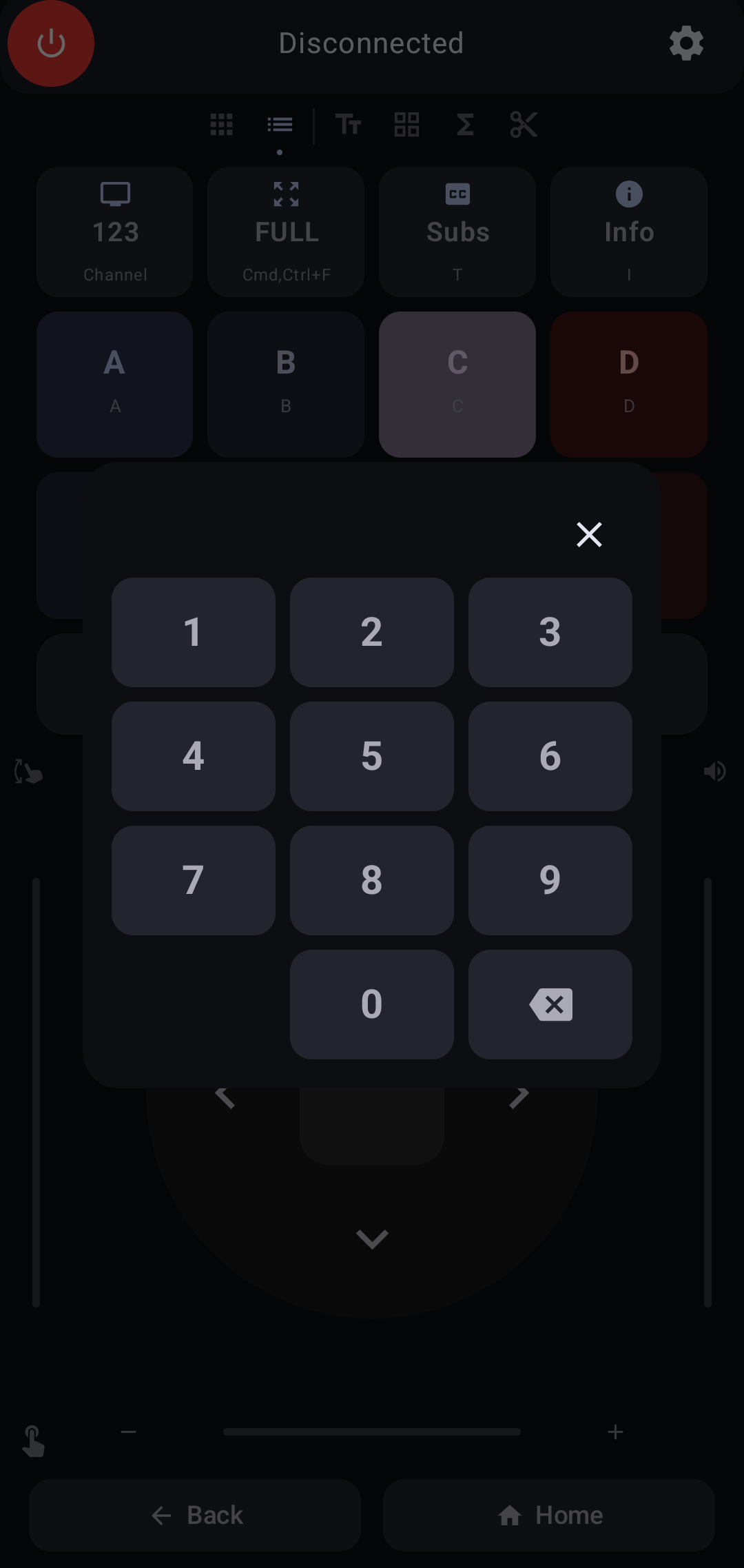
The number pad overlay dialog with 0-9 buttons.
Keyboard Pages
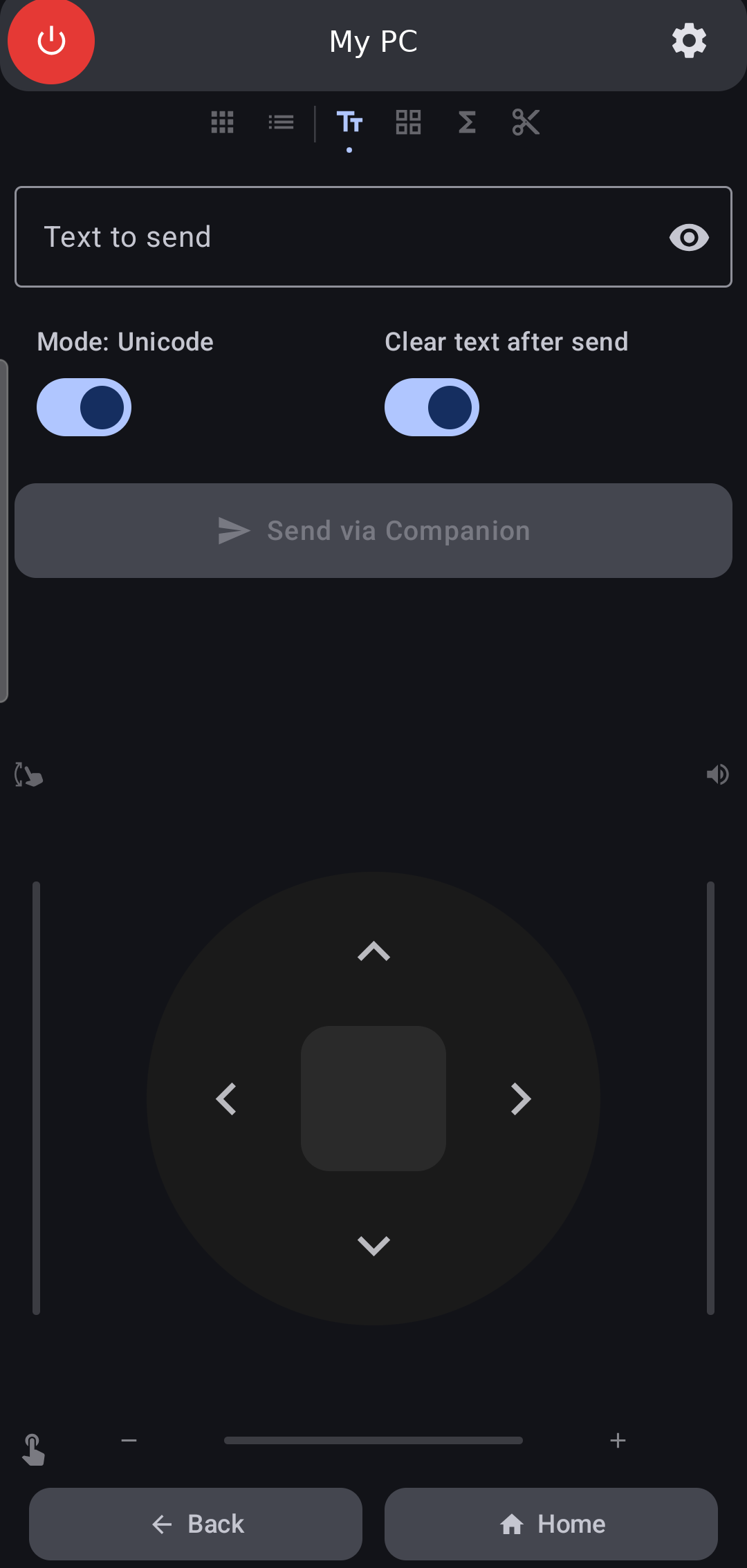
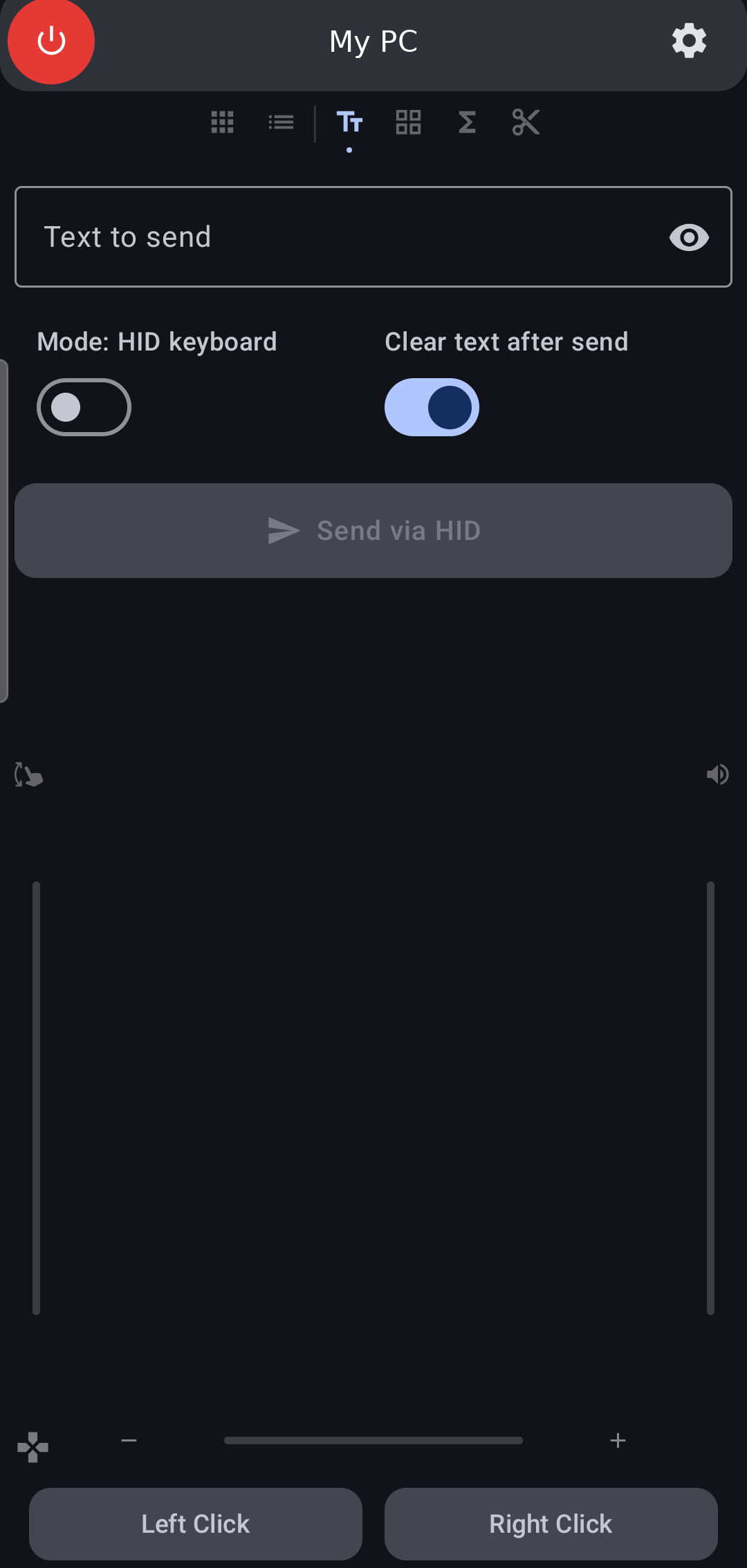
Page 3: Text Input
Type or paste text on your phone, then send it to the connected device.
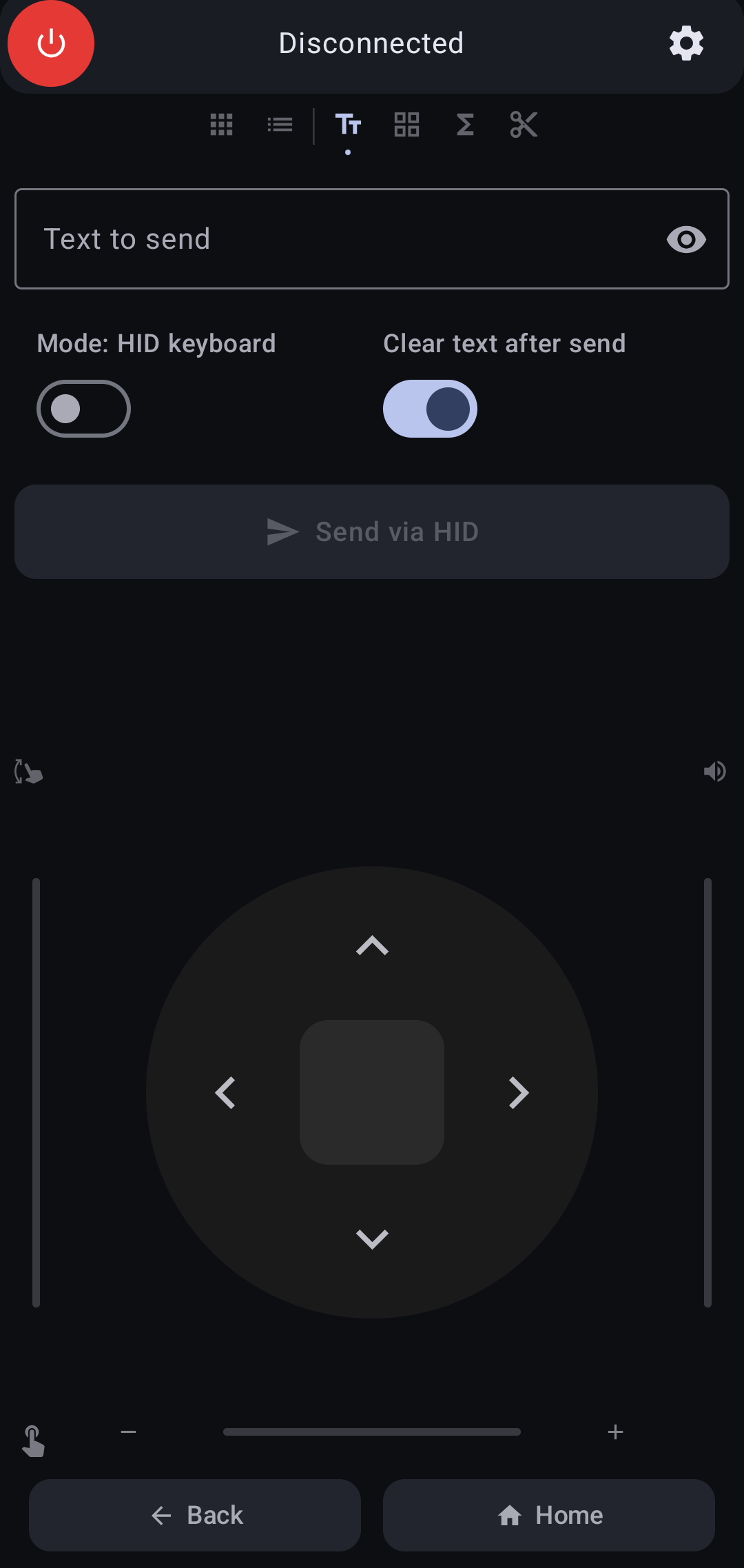
Text Input page showing the text field, mode toggle, and send button.
| Control | Description |
|---|---|
| Text field | Type or paste the text you want to send |
| Clear (X) button | Clears all text in the field |
| Eye icon | Toggle text visibility (useful for passwords) |
| Mode toggle | Switch between Unicode Companion and HID Keyboard modes |
| "Clear after send" | Automatically clears the text field after a successful send |
| Send button | Sends the text to the connected device |
HID Keyboard mode sends text as individual key presses. It works without companion software but only supports ASCII characters such as A-Z, 0-9, and basic punctuation. Emojis and international characters are not supported.
Unicode Companion mode sends text through a Bluetooth companion channel. It supports all Unicode characters including emojis, accented letters, and international scripts. This mode requires the Companion to be running on the host computer.
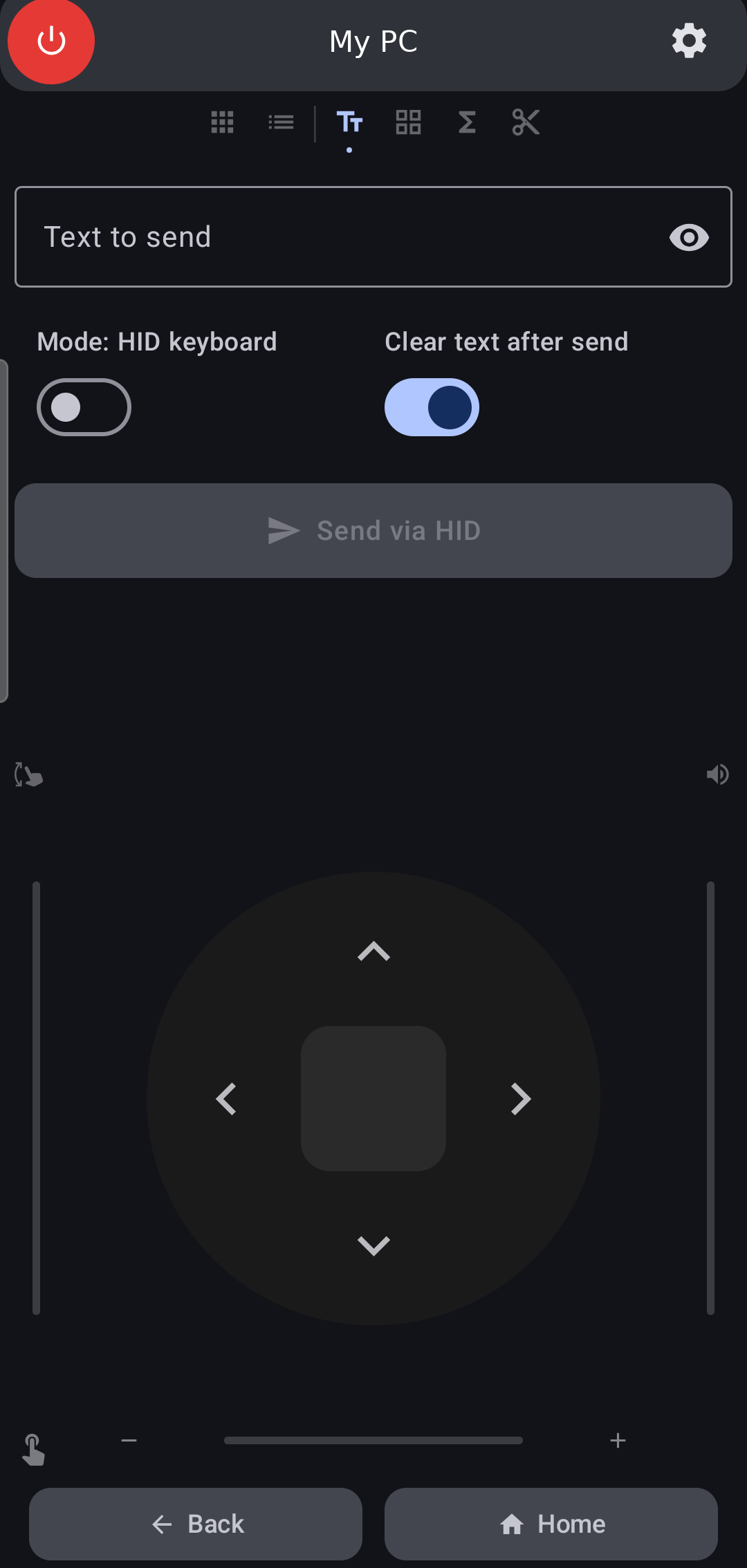
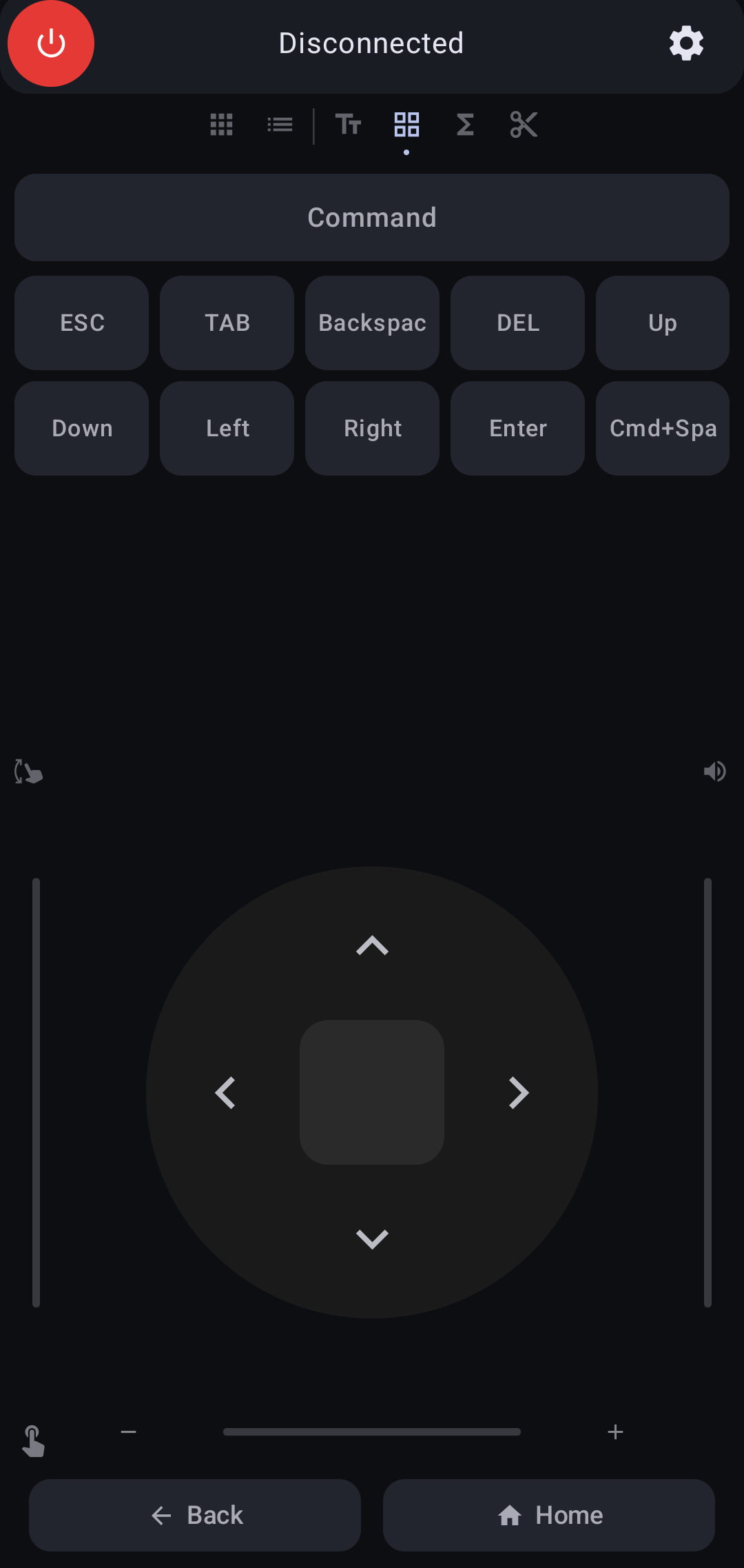
Page 4: Common Keys
Essential keyboard keys for navigation and editing.
| Key | Action |
|---|---|
| ESC | Escape |
| TAB | Tab |
| Backspace | Delete backward |
| DEL | Delete forward |
| Arrow keys | Up, Down, Left, Right |
| Enter | Enter/Return |
| Search | Cmd+Space (Mac), Win+S (Windows), Super (Linux) |
| Command toggle | Hold to combine with other keys (e.g., Cmd+Tab) |
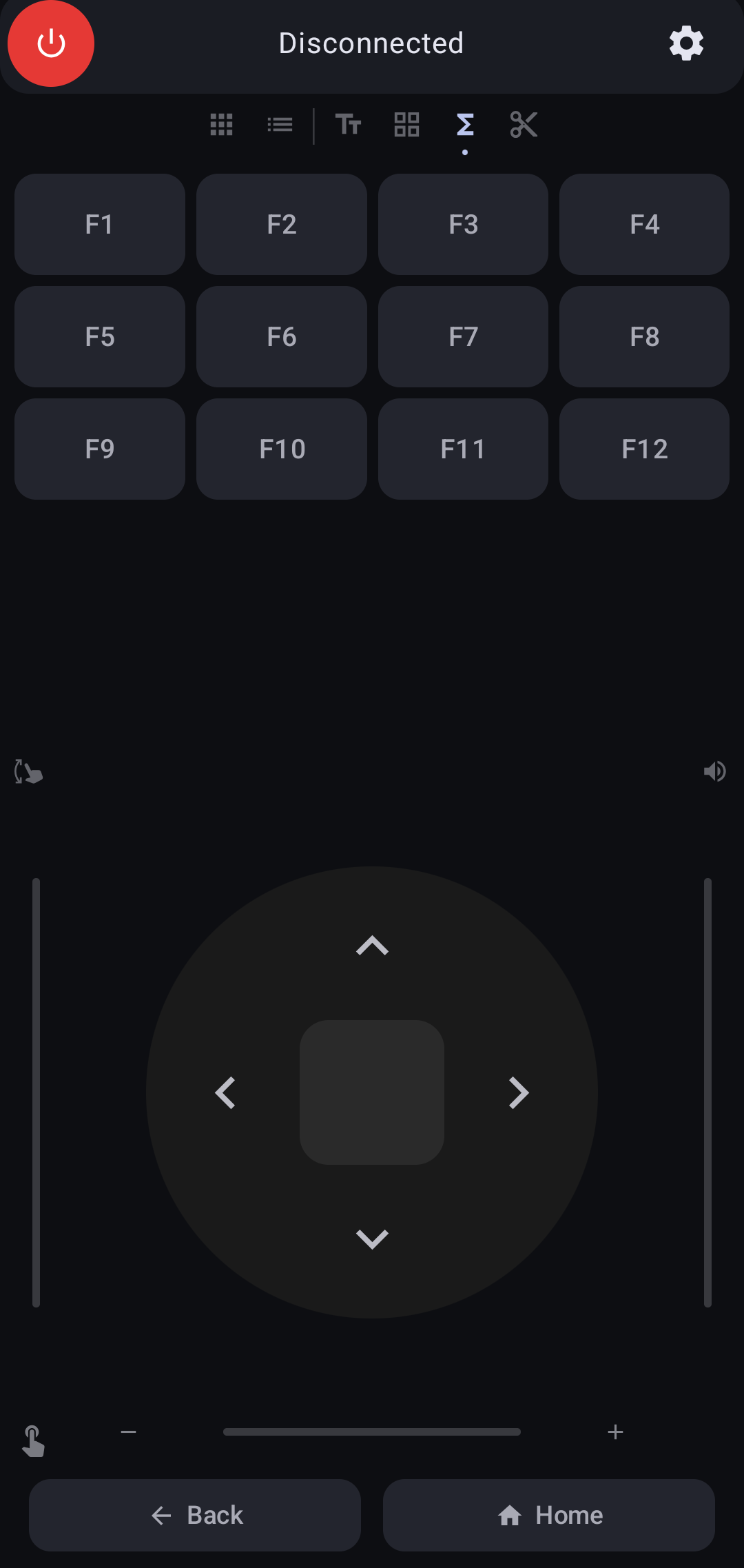
Page 5: Function Keys
A grid of F1 through F12 keys.
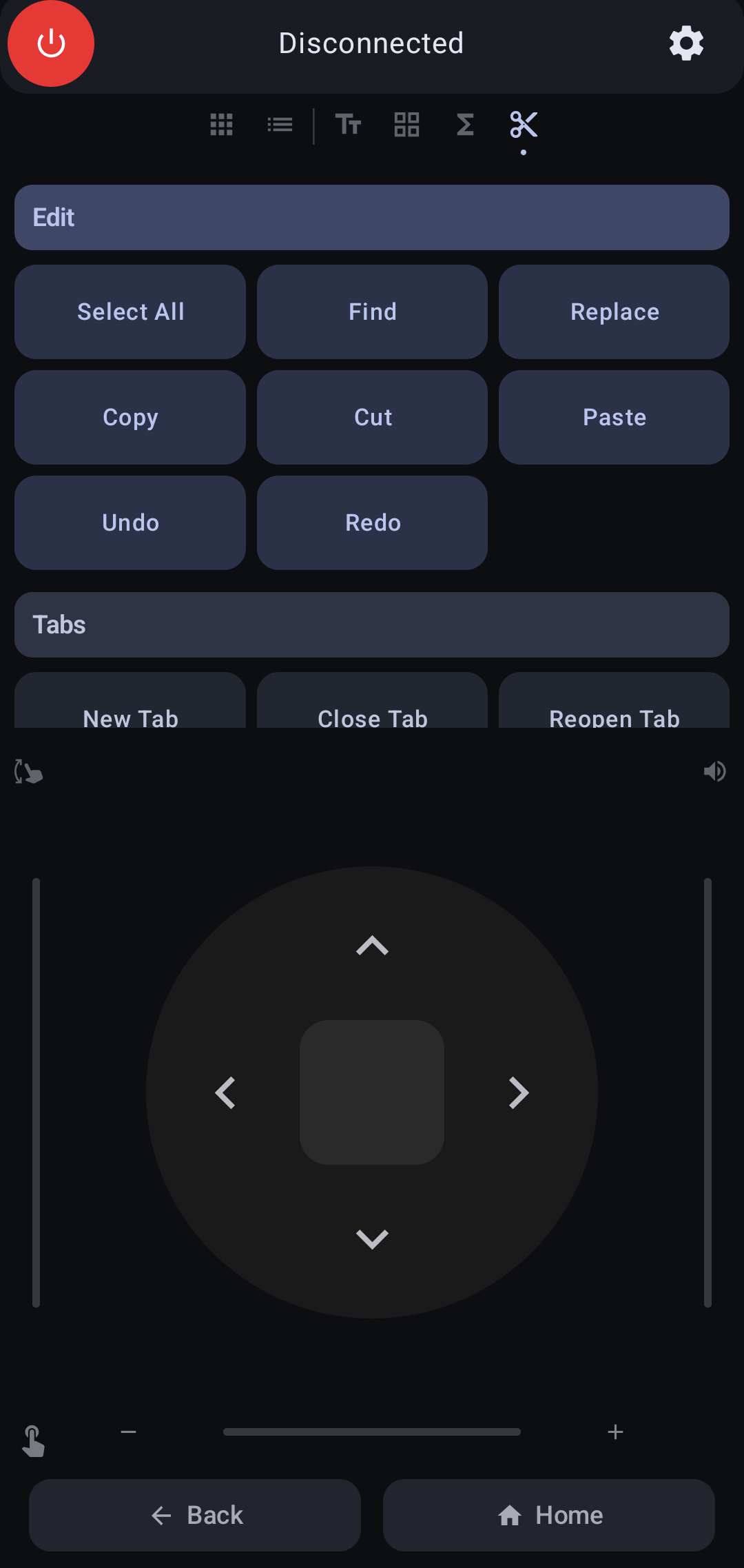
Page 6: Keyboard Shortcuts
Pre-programmed shortcuts that automatically adapt to your selected platform (Mac/Windows/Linux):
| Category | Shortcuts |
|---|---|
| Edit | Select All, Find, Replace, Copy, Cut, Paste, Undo, Redo |
| Tabs | New Tab, Close Tab, Reopen Tab, Next Tab, Prev Tab |
| Desktop | Next Desktop, Prev Desktop |
| Navigation | Back, Forward, Refresh, Hard Refresh |
| Window | Zoom In, Zoom Out, Fullscreen, Quit |
| System | Previous App, Find App, Lock Screen |
Touchpad & D-Pad
The lower section has two modes, toggled by a small icon button at the bottom-left corner. It also features Edge Sliders for quick adjustments:
- Left Edge (Vertical) — Scroll slider
- Right Edge (Vertical) — Volume slider (HID consumer reports)
- Bottom Edge (Horizontal) — Zoom slider
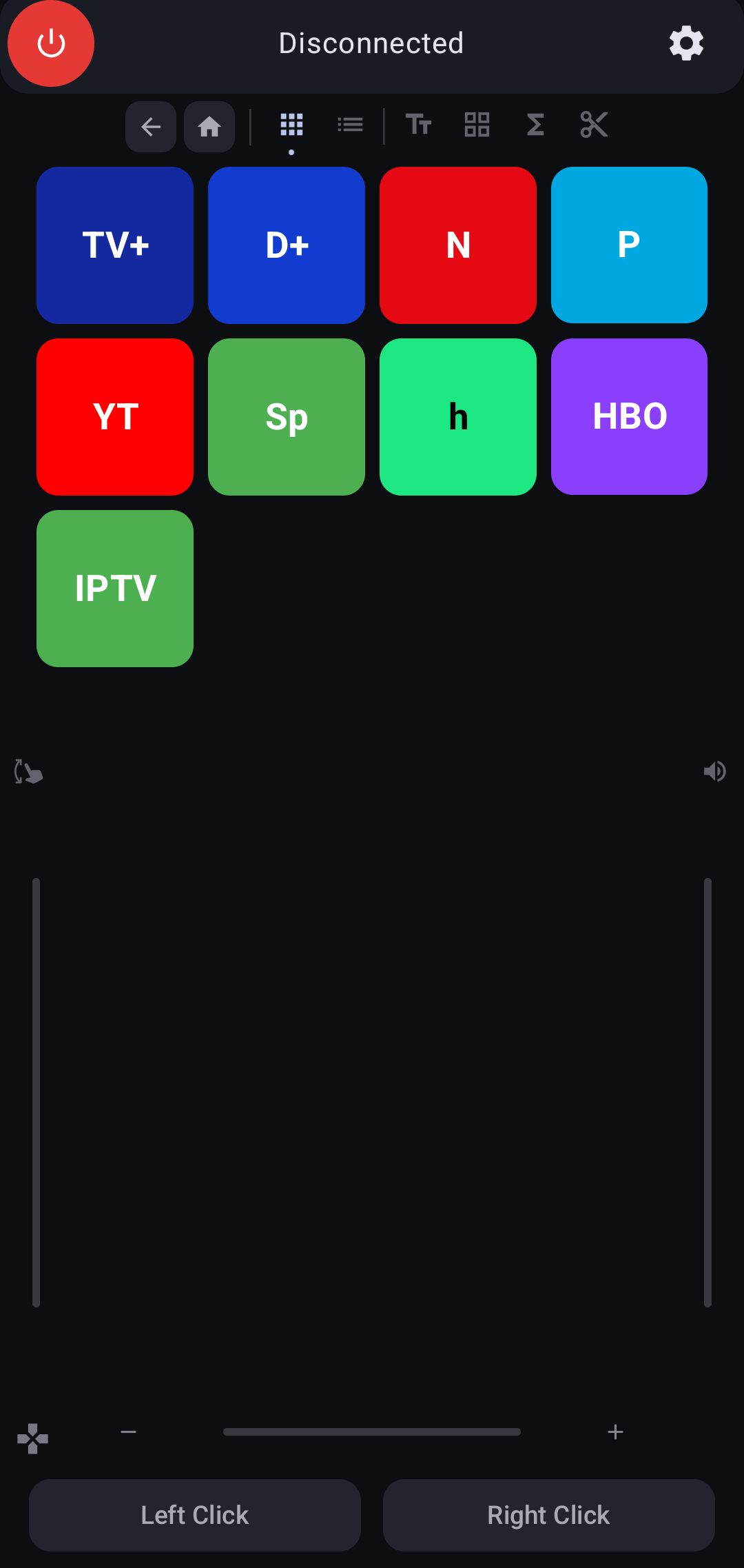
Touchpad Mode (Default)
| Gesture | Action |
|---|---|
| Single-finger drag | Move mouse cursor |
| Tap | Left click |
| Two-finger vertical drag | Scroll up/down |
| Two-finger pinch | Zoom in/out |
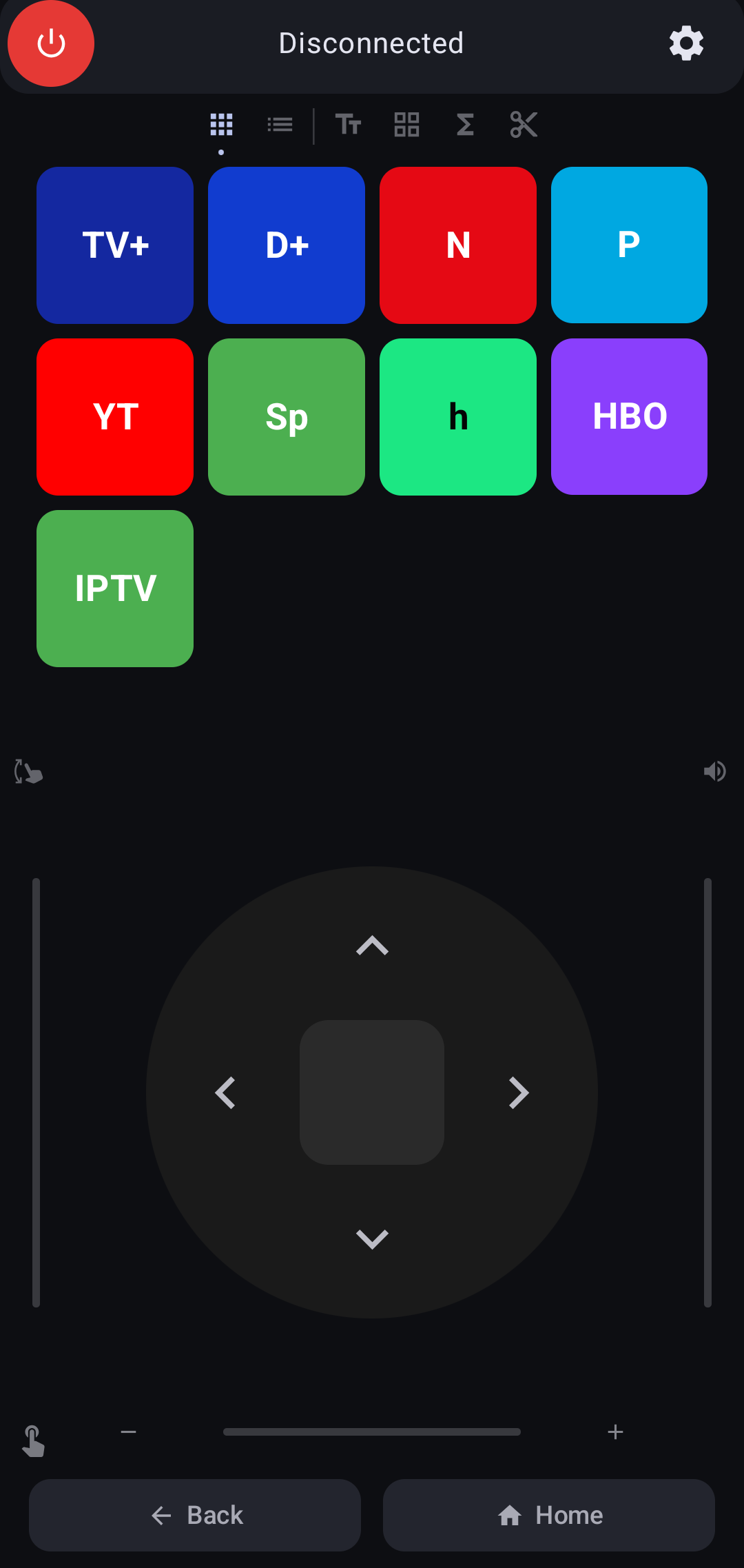
D-Pad Mode
A directional pad for arrow-key navigation, ideal for TVs and media interfaces.
| Button | Action |
|---|---|
| Center | Select / Enter |
| Up/Down/Left/Right | Arrow key navigation |
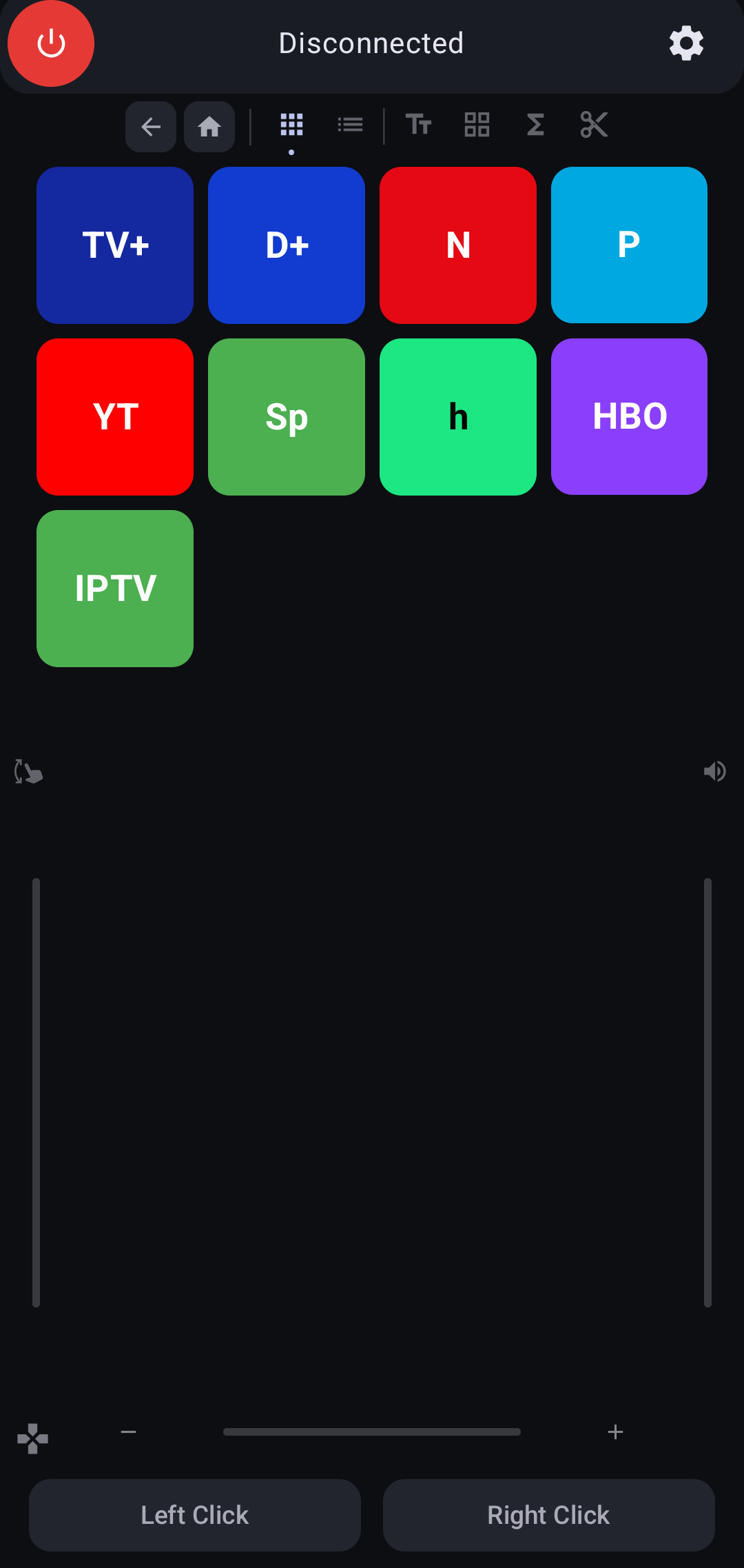
Mouse Buttons
| Button | Action |
|---|---|
| Left Click | Left mouse click. Press and hold, then drag on the touchpad to perform a drag operation. The button changes its label to "Dragging" and becomes highlighted when active. |
| Right Click | Right mouse click (context menu) |
Settings
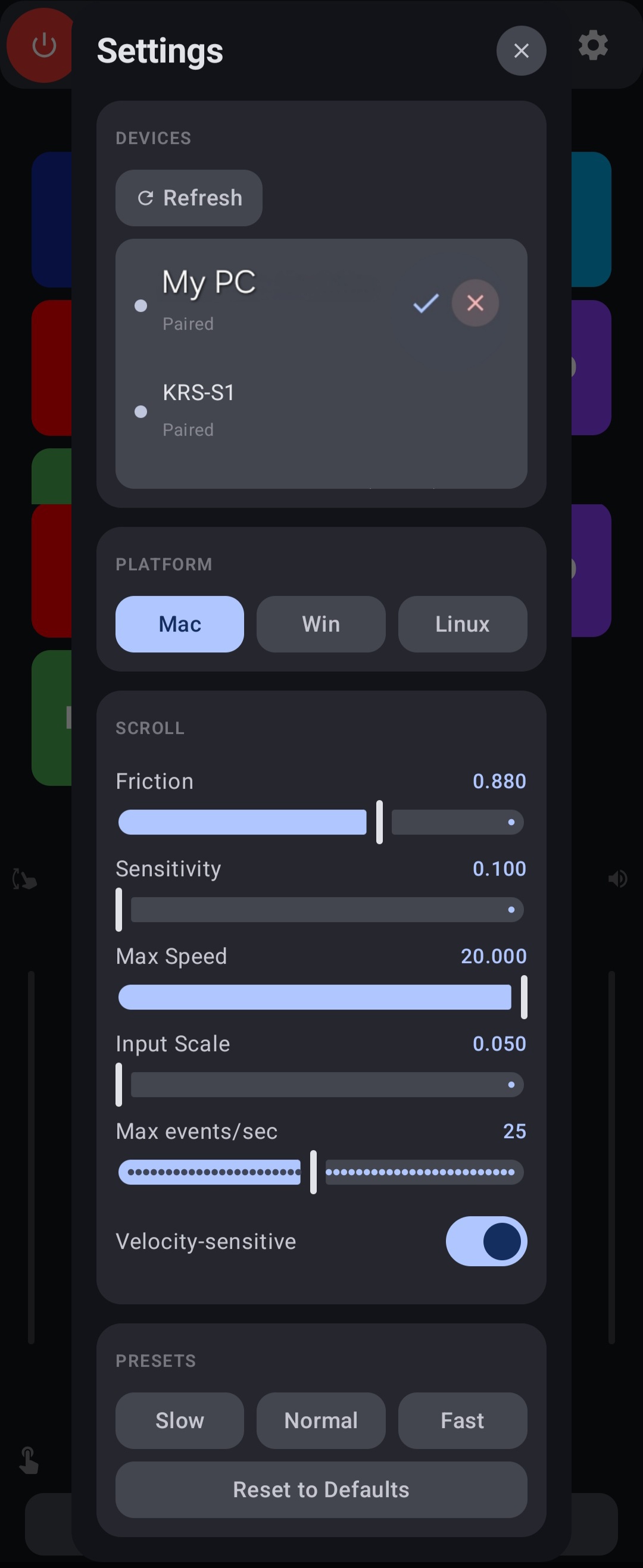
Tap the gear icon in the top bar to open Settings.
Devices
- Refresh — Rescan for paired and saved Bluetooth devices
- Clear Saved — Remove all previously saved device records
- Device list — Shows all discovered devices with connection status. Tap a device to connect, or use the disconnect/remove buttons.
Platform
Select the operating system of your connected device: Mac, Windows, or Linux. This affects which keyboard shortcuts are sent (e.g., Cmd vs Ctrl). The platform setting is saved per device.
Scroll Settings
| Setting | Description | Range |
|---|---|---|
| Friction | How quickly scrolling decelerates | 0.7 – 0.98 |
| Sensitivity | Cursor responsiveness | 0.1 – 1.0 |
| Max Speed | Maximum scroll velocity cap | 1 – 20 |
| Input Scale | Touch deltas to scroll distance | 0.05 – 1.0 |
| Max Events/sec | Throttle scroll events | 1 – 50 |
| Velocity-sensitive | Physics-based acceleration | On/Off |
Presets: Slow, Normal, Fast, and Reset (restore defaults).
Companion Setup (Unicode Text Input)
The PhoneRC Companion is a Python script that runs on your computer. It enables two features:
- App Shortcut Launching — Maps the keyboard shortcuts from the App Shortcuts page to open streaming websites in your browser
- Unicode Text Input — Receives full Unicode text (including emojis) from the phone's Text Input page via Bluetooth RFCOMM
Prerequisites
- Python 3.8 or later
- Your phone already paired with the computer via Bluetooth
Installation
Download the companion for your platform from the Downloads section below, extract, then run:
cd shortcut-launcher
pip install -r requirements.txt
Verify the installation:
python shortcut_launcher.py --self-testpython shortcut_launcher.py --self-test
PhoneRC Launcher Self-Test
============================================================
Platform: Darwin
pynput: available
companion backend: macos-helper
companion supported: yes
companion detail: Swift helper includes an RFCOMM service skeleton and structured stdio bridge
macOS helper path: /Users/U1/shortcut-launcher/macos-helper/.build/release/PhoneRCCompanionHelper
macOS helper present: yes
macOS helper runnable: yes
macOS helper stdio bridge: yes
macOS helper IPC protocol: 1
pybluez-compatible bluetooth: missing
python executable: /Users/U1/shortcut-launcher/.venv/bin/python
pyperclip: available
xdotool: not-applicable
config.json: present
AutoHotkey launcher file: presentRunning the Companion
# App shortcut hotkeys only
python shortcut_launcher.py

# Unicode text companion only
python shortcut_launcher.py --companion

# Both hotkeys and Unicode text (recommended)
python shortcut_launcher.py --bothpython shortcut_launcher.py --both --verbose
Loaded config from: /Users/U1/shortcut-launcher/config.json
Registered shortcuts:
------------------------------------------------------------
CTRL + SHIFT + ALT + 1 -> Apple TV+ (https://tv.apple.com)
CTRL + SHIFT + ALT + 2 -> Disney+ (https://www.disneyplus.com)
CTRL + SHIFT + ALT + N -> Netflix (https://www.netflix.com)
CTRL + SHIFT + ALT + 4 -> Prime Video (https://www.amazon.com/gp/video/storefront)
CTRL + SHIFT + ALT + T -> YouTube (https://www.youtube.com)
CTRL + SHIFT + ALT + 6 -> Spotify (https://www.spotify.com)
CTRL + SHIFT + ALT + 7 -> Hulu (https://www.hulu.com)
CTRL + SHIFT + ALT + 8 -> HBO Max (https://play.max.com)
CTRL + SHIFT + ALT + I -> IPTV ()
------------------------------------------------------------
9 shortcut(s) active.
[companion:listening] RFCOMM service published on channel 1
[companion:ready] stdio bridge ready on RFCOMM channel 1
[companion:listening] macOS companion helper started from /Users/U1/shortcut-launcher/macos-helper/.build/release/PhoneRCCompanionHelper
Companion listener started alongside hotkeys.
Running on: Darwin
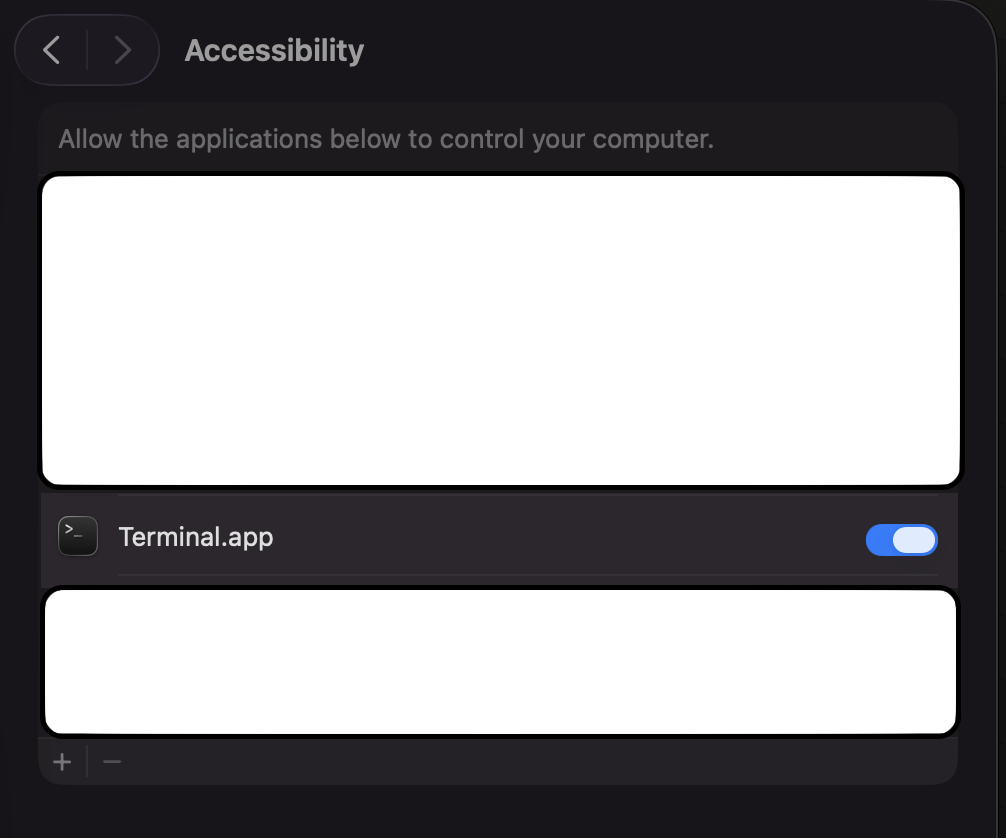
Note (macOS): You may need to grant Accessibility access
System Settings -> Privacy & Security -> Accessibility
Listening for shortcuts... Press Ctrl+C to quit.How It Works
- When you tap an App Shortcut button (e.g., Netflix), the phone sends a keyboard shortcut (Ctrl+Shift+Alt+N) over Bluetooth HID.
- The companion's hotkey listener intercepts this shortcut and opens the corresponding URL in your default browser.
- When you send text from the Text Input page in Unicode mode, the phone connects via Bluetooth RFCOMM to the companion, which pastes the text using the clipboard.
IPTV Integration Details
- IPTV is configured as a command shortcut rather than a URL in
shortcut-launcher/config.json. - The default command target is Kodi on all supported desktop platforms.
- You can replace the command with any IPTV player executable or script if you prefer another app.
Platform-Specific Notes
macOS
- For RFCOMM support, build the native macOS helper:
cd shortcut-launcher/macos-helper
swift build -c release- Alternatively, install native shortcuts:
python shortcut_launcher.py --install - The companion needs Accessibility permission: System Settings > Privacy & Security > Accessibility
Windows
- Install AutoHotkey v2 for native shortcut support, then run
python shortcut_launcher.py --install - Double-click
phonerc_shortcuts.ahkto start. Copy it to your Startup folder for auto-start. - Without AutoHotkey, keep
python shortcut_launcher.py --bothrunning.
Linux
- GNOME: Shortcuts are installed via
dconf:python shortcut_launcher.py --install - Other DEs (KDE, XFCE): Desktop files are created in
~/.local/share/applications/. Add custom keyboard shortcuts in your DE's settings pointing to~/.local/bin/phonerc-*scripts.
Customizing Shortcuts
Edit shortcut-launcher/config.json to change URLs, add new shortcuts, or modify key combinations:
{
    "shortcuts": [
        {
            "name": "Netflix",
            "keys": ["ctrl", "shift", "alt", "n"],
            "url": "https://www.netflix.com"
        },
        {
            "name": "IPTV",
            "keys": ["ctrl", "shift", "alt", "i"],
            "command": {
                "darwin": "open -a Kodi",
                "windows": "start \"\" \"C:\\Program Files\\Kodi\\kodi.exe\"",
                "linux": "kodi"
            }
        }
    ]
}
After editing, re-run --install to update native shortcuts.
Companion Text Input Limitations
- Unicode Companion mode uses the clipboard to paste text, so it cannot type into secure fields (e.g., password prompts). Use HID Keyboard mode for those.
- The companion connection has a 10-second timeout. If it can't connect, the app falls back to HID Keyboard mode automatically.
Companion Downloads
Download the PhoneRC Companion for your platform. Each archive contains the Python scripts, configuration file, and platform-specific helpers. Binaries will be included in future releases.
pip install -r requirements.txt to install dependencies, then python shortcut_launcher.py --self-test to verify the setup.
Customizing Buttons
Many buttons on PhoneRC can be customized by long-pressing them.
| Page | Customizable Buttons |
|---|---|
| App Shortcuts | All built-in app launcher buttons, plus any custom buttons you add from the + tile |
| Channel Controls | Subs, Info, and channel buttons |
On the App Shortcuts page, you can also tap the + tile to create a new shortcut button.
How to Customize
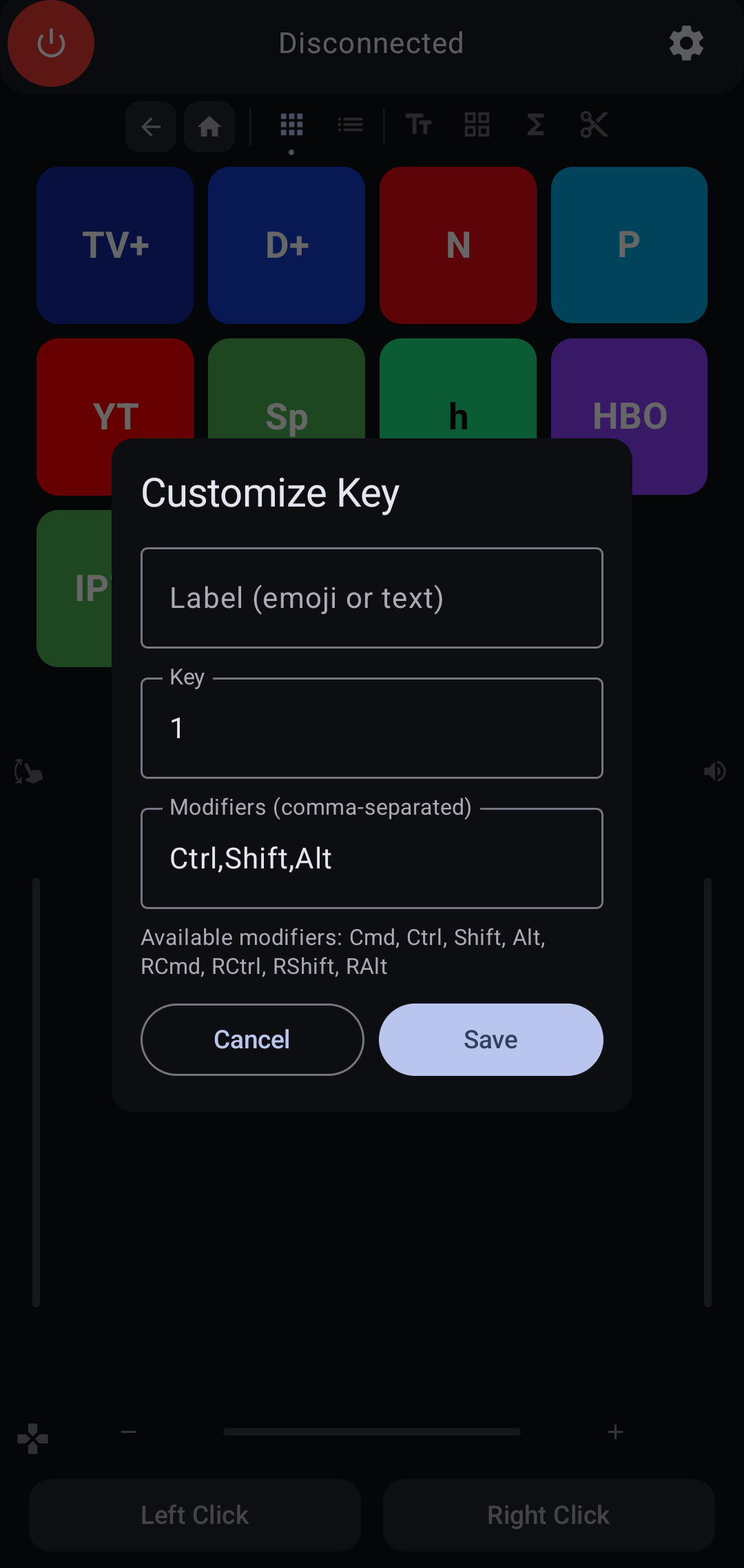
- Long-press any customizable button, or tap the
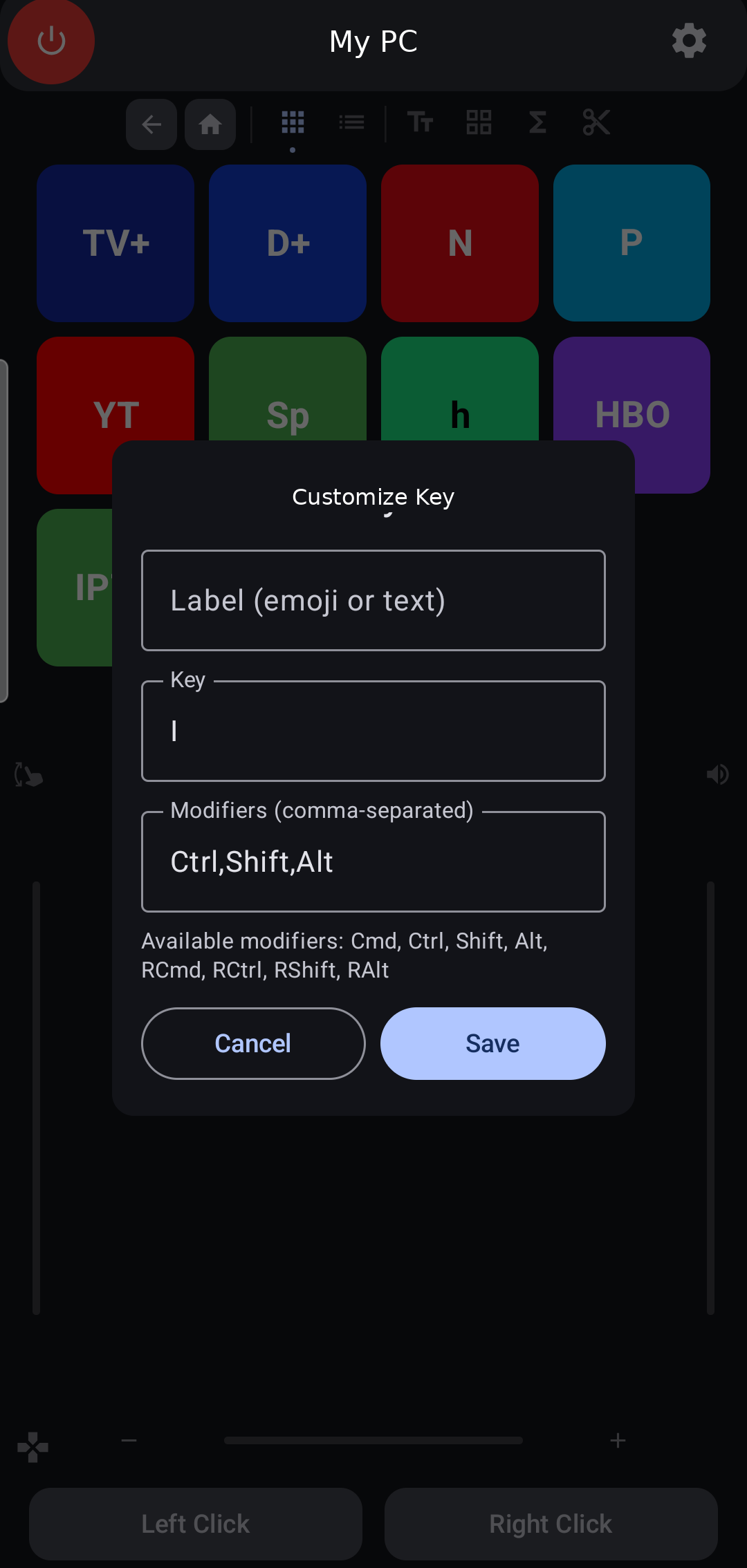
+tile on the App Shortcuts page to create a new one. - In the dialog that appears:
- Label — Enter a custom name or emoji
- Key — Type the key name (A-Z, 0-9, F1-F12, Enter, Space, etc.). Auto-complete suggestions appear as you type.
- Modifiers — Comma-separated list:
Ctrl,Shift,Alt,Cmd,RCtrl,RShift,RAlt,RCmd - Color — For custom app buttons, choose one of the built-in swatch colors: Gray, Red, Blue, Green, Orange, Purple, Teal, or Pink.
- Tap Save to update an existing button, or Add to create a new custom app shortcut.
- For custom app buttons, use Delete Button to remove them from the grid.
Example: To make a button send Ctrl+Shift+Alt+S for Spotify: Label = Spotify, Key = S, Modifiers = Ctrl,Shift,Alt
Customizations are saved and persist between app sessions, including the selected color for custom app buttons.
Troubleshooting
Phone won't pair
- Make sure Bluetooth is enabled on both devices.
- Ensure the target device is in pairing/discoverable mode.
- Try removing PhoneRC from the target's paired devices list and pairing again.
- Restart the PhoneRC app.
"Disconnected" in the top bar
- Open Settings (gear icon) and tap Refresh to rescan.
- Make sure the target device's Bluetooth is on and within range.
- Check that PhoneRC is still listed as a paired device on the target.
Keys not working correctly
- Check the Platform setting in Settings. Make sure it matches your target device's OS (Mac/Windows/Linux).
App shortcuts don't open websites
- The App Shortcuts page needs the Companion running on the target computer. See Companion Setup.
- Run
python shortcut_launcher.py --self-testto verify the companion is configured correctly. - If using native shortcuts (
--install), verify withpython shortcut_launcher.py --status.
IPTV/Kodi doesn't launch
- Verify Kodi is installed on the target computer.
- Check the
IPTVshortcut entry inshortcut-launcher/config.jsonand confirm the platform command path is valid. - Run
python shortcut_launcher.py --both --verboseand confirm theCTRL + SHIFT + ALT + I -> IPTVmapping appears.
Unicode text not working
- Make sure the Companion is running with
--companionor--bothflag. - Switch to Unicode Companion mode using the mode toggle on the Text Input page.
- Run
--self-testto check Bluetooth RFCOMM support. - If the companion can't connect, the app falls back to HID Keyboard mode (ASCII only).
Scrolling feels too fast/slow
- Open Settings and adjust the Scroll settings, or try a preset (Slow/Normal/Fast).
Privacy Policy
PhoneRC does not collect, store, or transmit any personal data. The application operates entirely locally on your device. All Bluetooth permissions are used solely for HID functionality.