
Getting Started
Requirements
- Android phone running Android 10 (API 29) or later
- A target device with Bluetooth (TV, computer, streaming box, etc.)
- For system-wide app shortcuts and Unicode text input: a computer running the PhoneRC Companion (see Desktop Companion)
Install & Launch
- Install PhoneRC from the Google Play Store.
- On first launch, the app will request Bluetooth permissions. Grant all requested permissions — the app needs these to function as a Bluetooth keyboard and mouse.
- The app will start its Bluetooth HID service automatically. You'll see a persistent notification indicating PhoneRC is active.
Pairing Your Phone
- Open PhoneRC, grant all requested Bluetooth permissions, then open Settings → Connection Assistant.
- If Bluetooth is off or no receiver is listed, tap Open Bluetooth.
- On your target device (computer, TV, streaming box, etc.), open its Bluetooth keyboard, accessory, or input-device screen and start scanning for new devices.
- Look for your Android phone's Bluetooth/device name. Most receivers show the phone name, not "PhoneRC," and may categorize it as a keyboard, mouse, input device, remote, or accessory.
- Select the phone name and accept any pairing confirmation that appears.
- Return to PhoneRC and tap Refresh. PhoneRC may connect automatically; otherwise, tap Connect or Reconnect beside the receiver.
- Confirm that the top bar shows the connected device name before sending input.
Tip: If you are not sure what name to look for, check the Android phone's Bluetooth settings. The receiver should list that phone name as the keyboard/mouse accessory.
Receiver notes: Some Samsung TVs require you to accept the Bluetooth keyboard on the TV. Volume, media, and channel controls are receiver-dependent even when keyboard and pointer input work correctly.
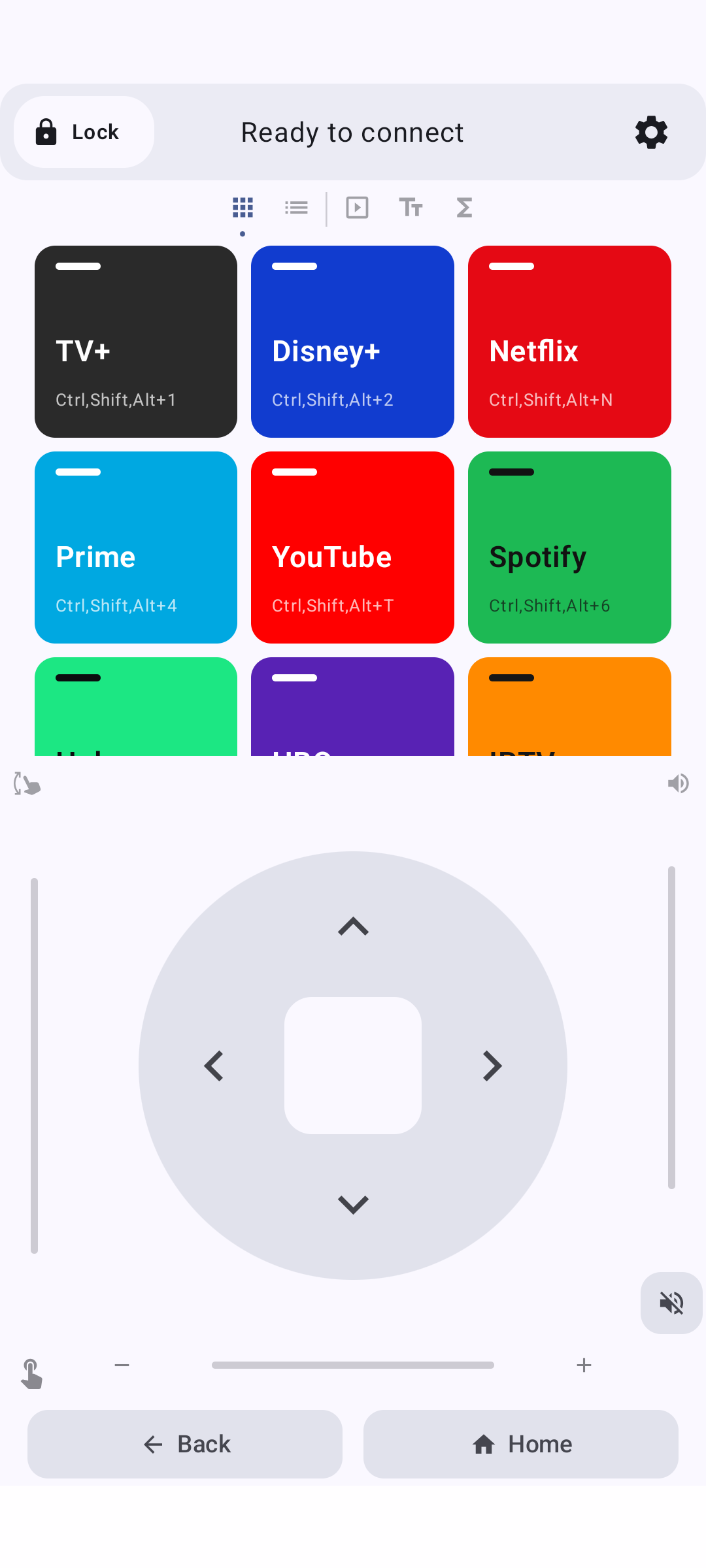
PhoneRC ready to pair or reconnect from the main remote screen.
App Overview
PhoneRC keeps the main remote controls on one screen, with navigation tabs for app shortcuts, TV controls, presentation controls, text input, and key controls.
Current main layout with app shortcuts, navigation tabs, lower controls, edge sliders, and bottom actions.
Top Bar
| Button | Action |
|---|---|
| Red circle (Power) | Sends power/logout command (Ctrl+Cmd+Q on Mac, Power key on Windows/Linux) |
| Connection Status | Shows the name of the currently connected device |
| Gear icon | Opens Settings dialog |
Bottom Bar
| Button | Action |
|---|---|
| Back | Sends ESC key |
| Home | Sends Home key |
Navigation Tabs
The tab row switches between App Shortcuts, TV Controls, Presentation Controls, Text Input, and Key Controls.
TV Remote Pages
Page 1: App Shortcuts
A grid of streaming app launcher buttons with brand colors. Tap a button to launch the corresponding app or website on your connected device.
| Button | Default Action |
|---|---|
| TV+ | Apple TV+ |
| Disney+ | Disney+ |
| Netflix | Netflix |
| Prime | Prime Video |
| YouTube | YouTube |
| Spotify | Spotify |
| Hulu | Hulu |
| HBO | HBO Max |
| IPTV | Launches IPTV player (Kodi by default in Companion config) |
These buttons send keyboard shortcuts (Ctrl+Shift+Alt + a key) that the Companion maps to URLs. See Desktop Companion for details.
The page also includes a + tile for adding your own app shortcut buttons. Custom buttons appear in the same grid and can be edited or deleted later.
IPTV Shortcut (Kodi Default)
PhoneRC includes a dedicated IPTV shortcut that sends Ctrl+Shift+Alt+I.
- In the default Companion configuration, this shortcut launches Kodi as the IPTV app.
- macOS default command:
open -a Kodi - Windows default command:
start "" "C:\Program Files\Kodi\kodi.exe" - Linux default command:
kodi
If Kodi is installed in a non-default location, update the IPTV entry in the Companion's installed config.json (see Desktop Companion).
Long-press any existing button to customize its label, key, and modifiers. Tap the + tile to add a new custom app button. See Customizing Buttons.
App Shortcuts page showing streaming app buttons, brand colors, and the current remote layout.
Page 2: Channel & Media Controls
Designed for TV and media player control with an all-in-one media layout:
- Top Row Controls — 123 (Channel) opens a 0-9 overlay for entering TV channel numbers, FULL (Fullscreen) sends fullscreen toggle, Subs (CC Icon) sends subtitle toggle, and Info (i Icon) sends info overlay.
- Middle Section — Additional customizable channel shortcut tiles
- Bottom Row (Playback) — Previous Track, Play/Pause, Next Track rocker buttons
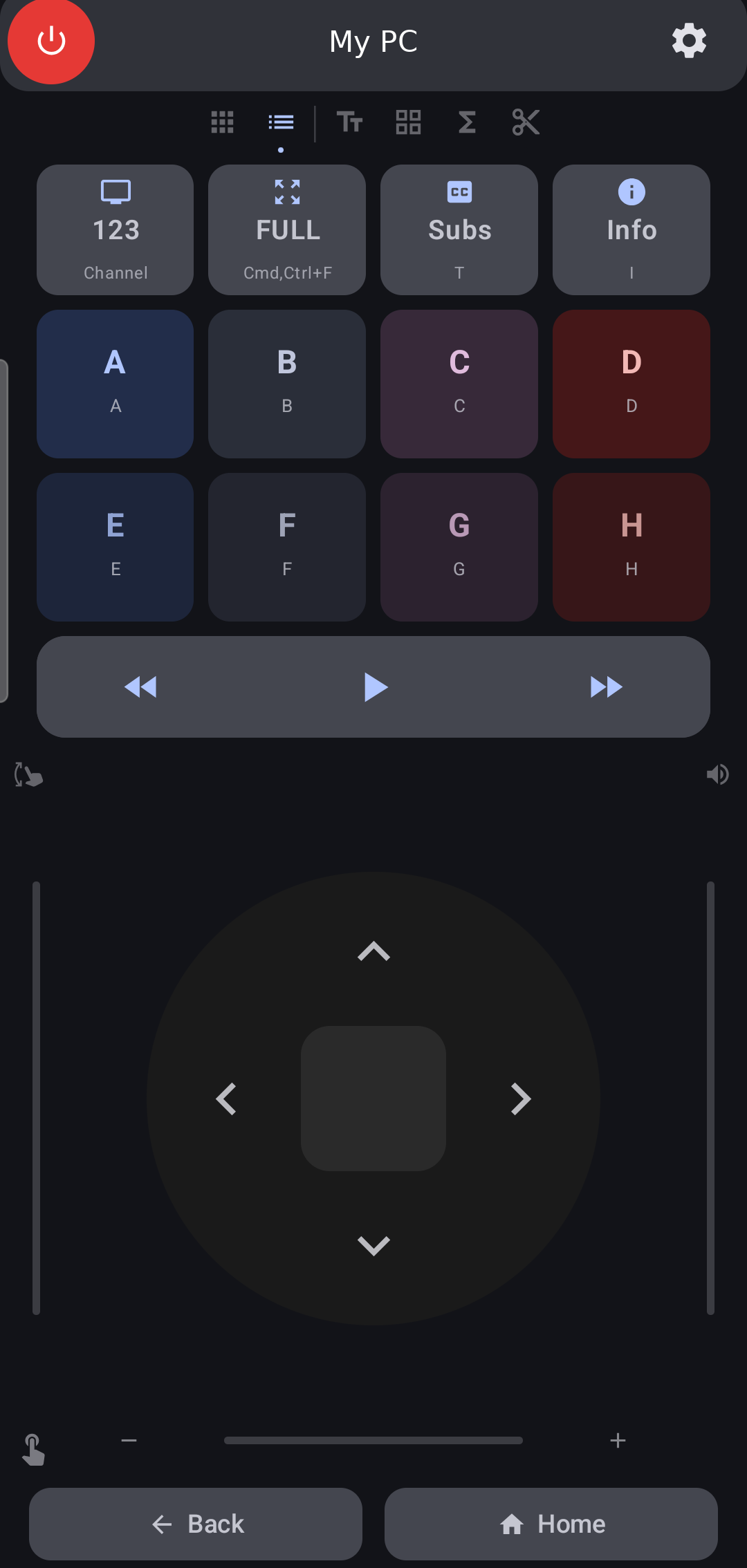
Channel Controls page showing number pad button, fullscreen, subs, info, and playback controls.
Presentation and Keyboard Pages
Page 3: Presentation Controls
Presentation mode provides slide navigation, start/end slideshow controls, blank screen actions, laser pointer shortcut, and a timer.
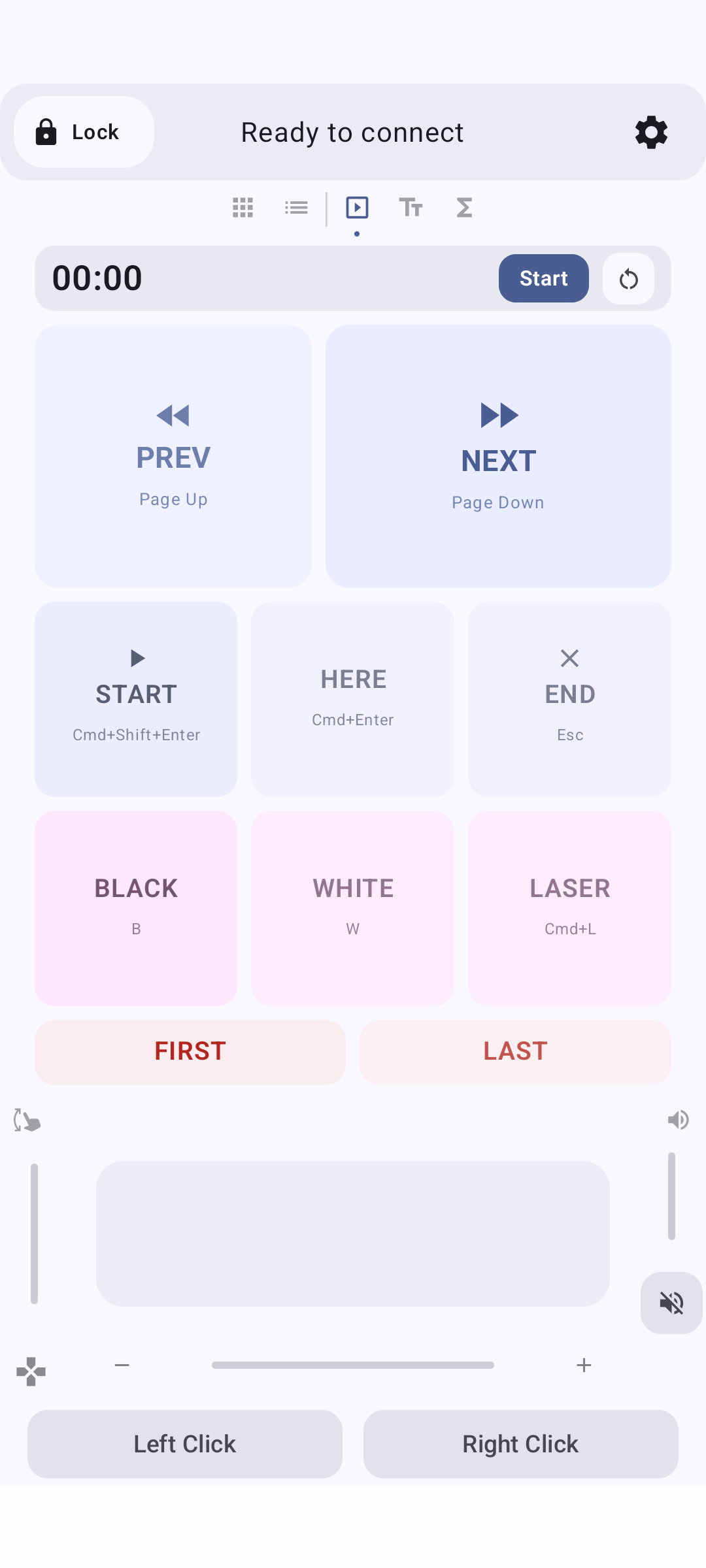
Presentation Controls page showing slide navigation, timer, start/end, blank screen, and laser pointer shortcuts.
Page 4: Text Input
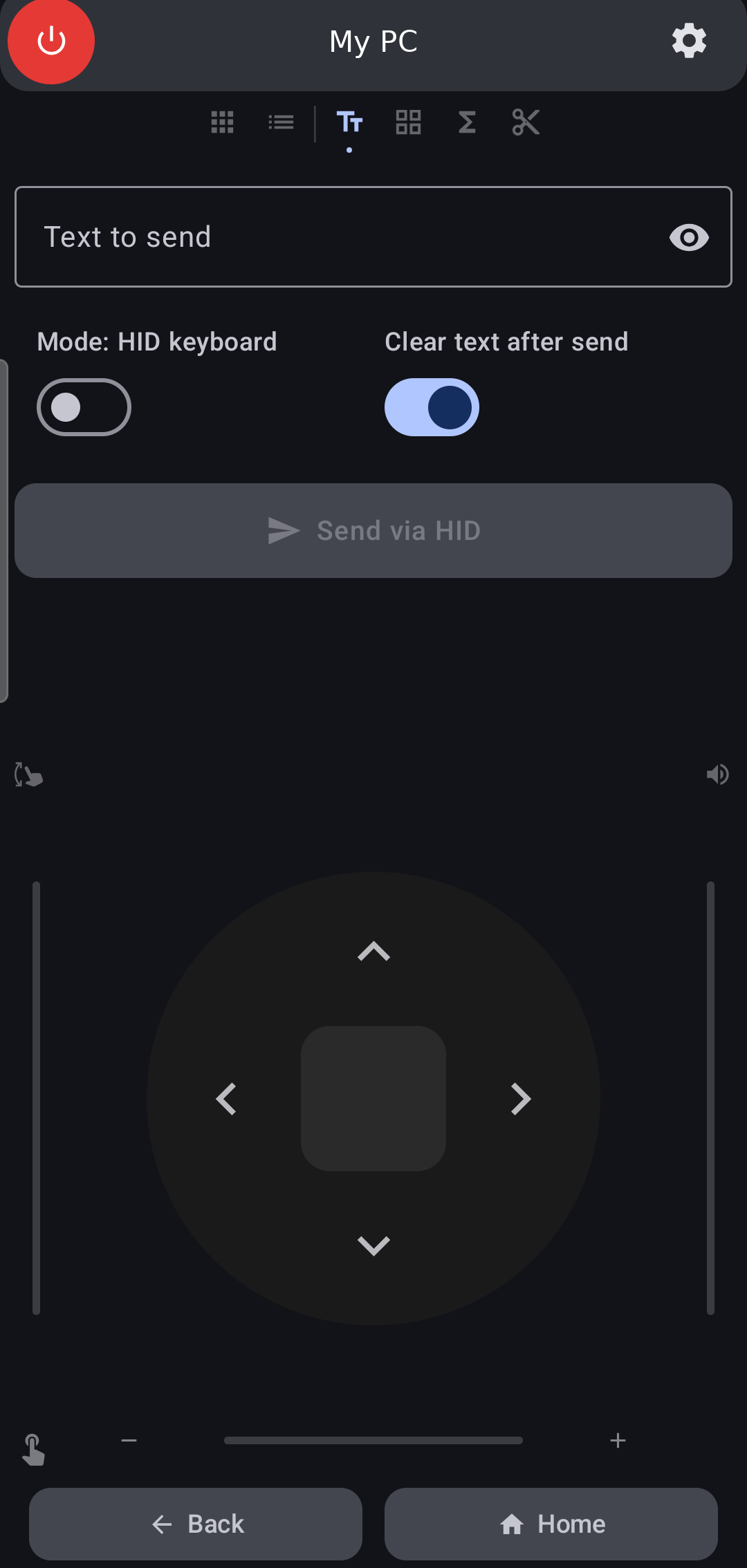
Type or paste text on your phone, then send it to the connected device.
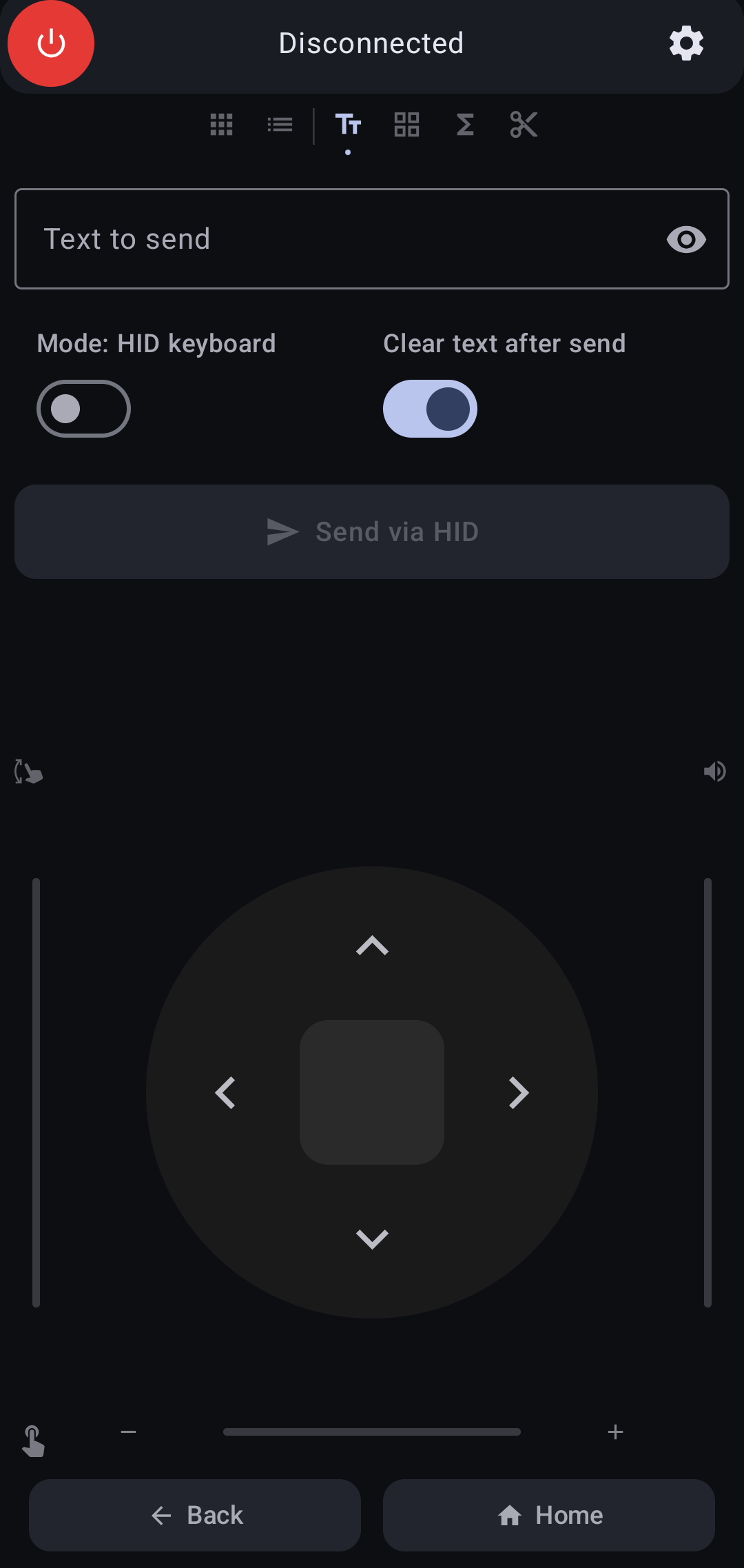
Text Input page showing the text field, mode toggle, and send button.
| Control | Description |
|---|---|
| Text field | Type or paste the text you want to send |
| Clear (X) button | Clears all text in the field |
| Eye icon | Toggle text visibility (useful for passwords) |
| Mode toggle | Switch between Unicode Companion and HID Keyboard modes |
| "Clear after send" | Automatically clears the text field after a successful send |
| Send button | Sends the text to the connected device |
HID Keyboard mode sends text as individual key presses. It works without companion software but only supports ASCII characters such as A-Z, 0-9, and basic punctuation. Emojis and international characters are not supported.
Unicode Companion mode sends text through a Bluetooth companion channel. It supports all Unicode characters including emojis, accented letters, and international scripts. This mode requires the Companion to be running on the host computer.
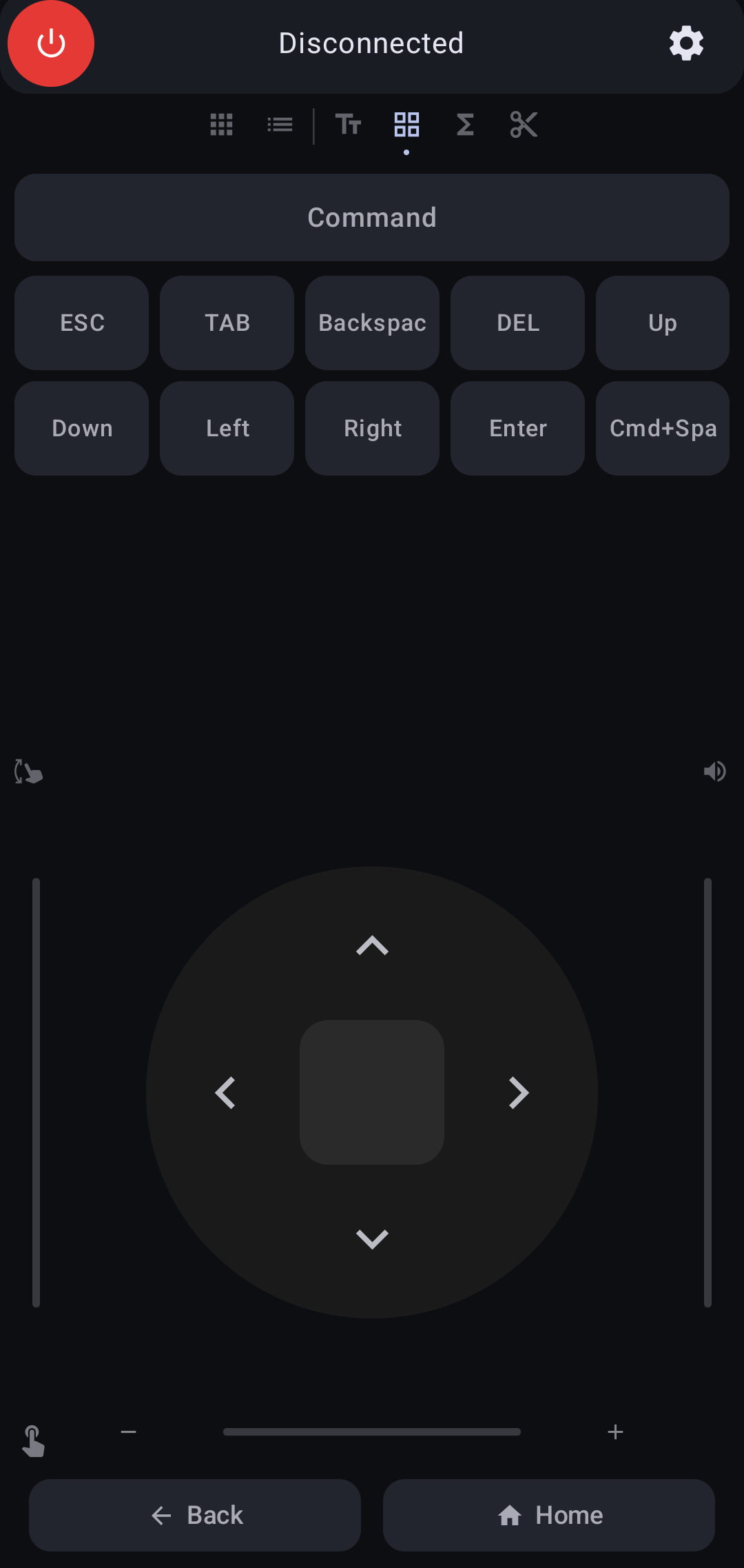
Page 5: Common Keys
Essential keyboard keys for navigation and editing.
| Key | Action |
|---|---|
| ESC | Escape |
| TAB | Tab |
| Backspace | Delete backward |
| DEL | Delete forward |
| Arrow keys | Up, Down, Left, Right |
| Enter | Enter/Return |
| Search | Cmd+Space (Mac), Win+S (Windows), Super (Linux) |
| Command toggle | Hold to combine with other keys (e.g., Cmd+Tab) |
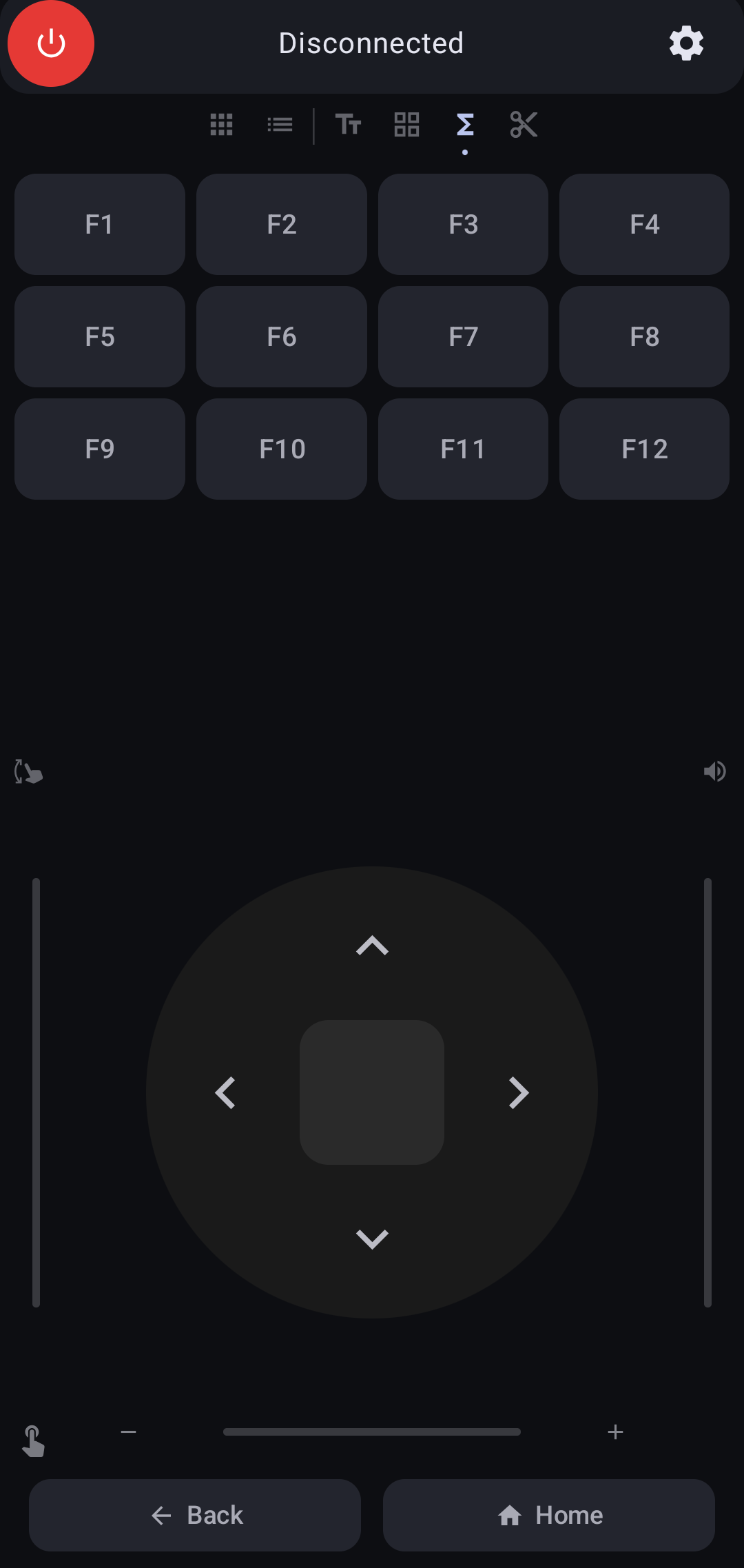
Function Keys
A grid of F1 through F12 keys.
Keyboard Shortcuts
Pre-programmed shortcuts that automatically adapt to your selected platform (Mac/Windows/Linux):
| Category | Shortcuts |
|---|---|
| Edit | Select All, Find, Replace, Copy, Cut, Paste, Undo, Redo |
| Tabs | New Tab, Close Tab, Reopen Tab, Next Tab, Prev Tab |
| Desktop | Next Desktop, Prev Desktop |
| Navigation | Back, Forward, Refresh, Hard Refresh |
| Window | Zoom In, Zoom Out, Fullscreen, Quit |
| System | Previous App, Find App, Lock Screen |
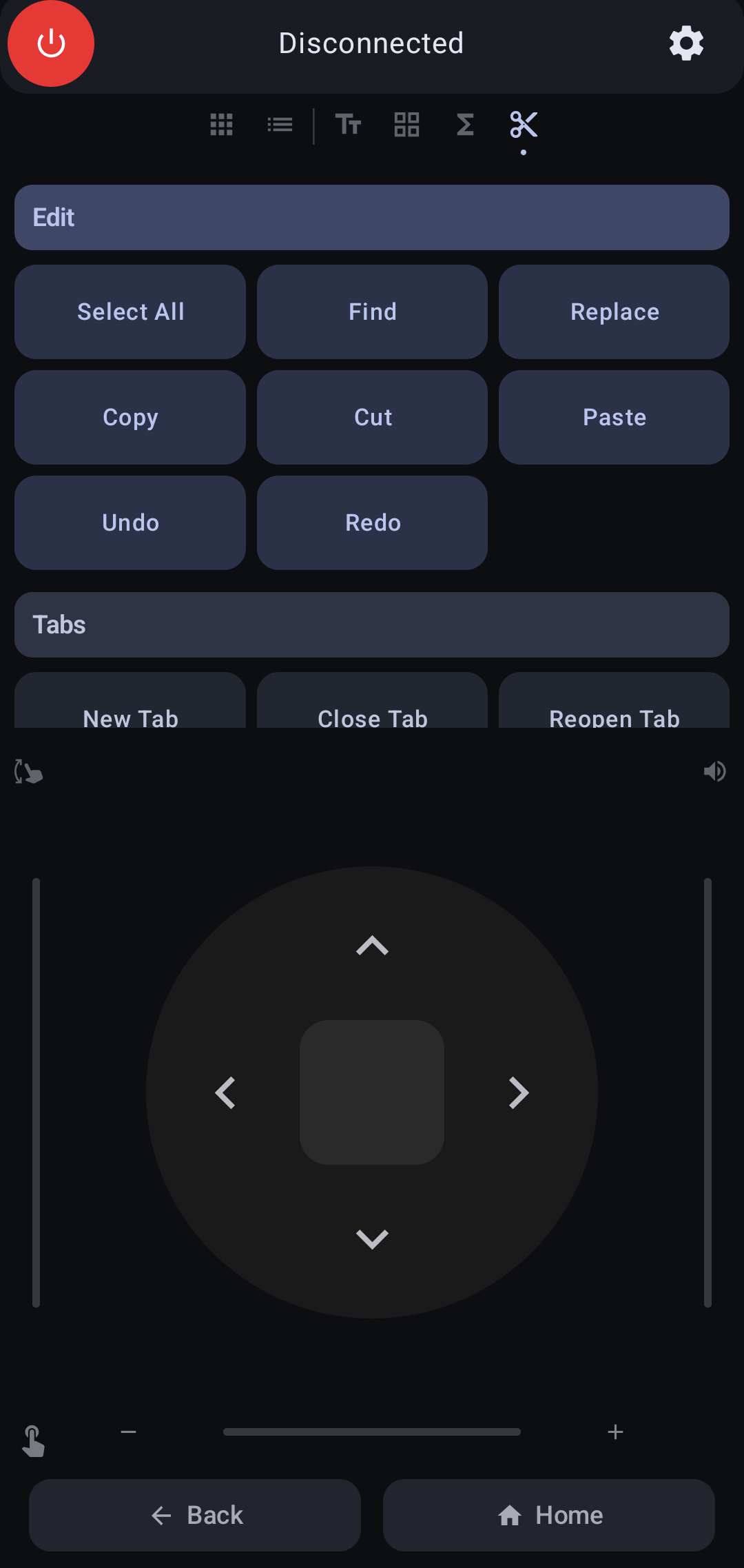
Touchpad & D-Pad
The lower section has two modes, toggled by a small icon button at the bottom-left corner. It also features Edge Sliders for quick adjustments:
- Left Edge (Vertical) — Scroll slider
- Right Edge (Vertical) — Volume slider (HID consumer reports)
- Bottom Edge (Horizontal) — Zoom slider
Touchpad Mode (Default)
| Gesture | Action |
|---|---|
| Single-finger drag | Move mouse cursor |
| Tap | Left click |
| Two-finger vertical drag | Scroll up/down |
| Two-finger pinch | Zoom in/out |
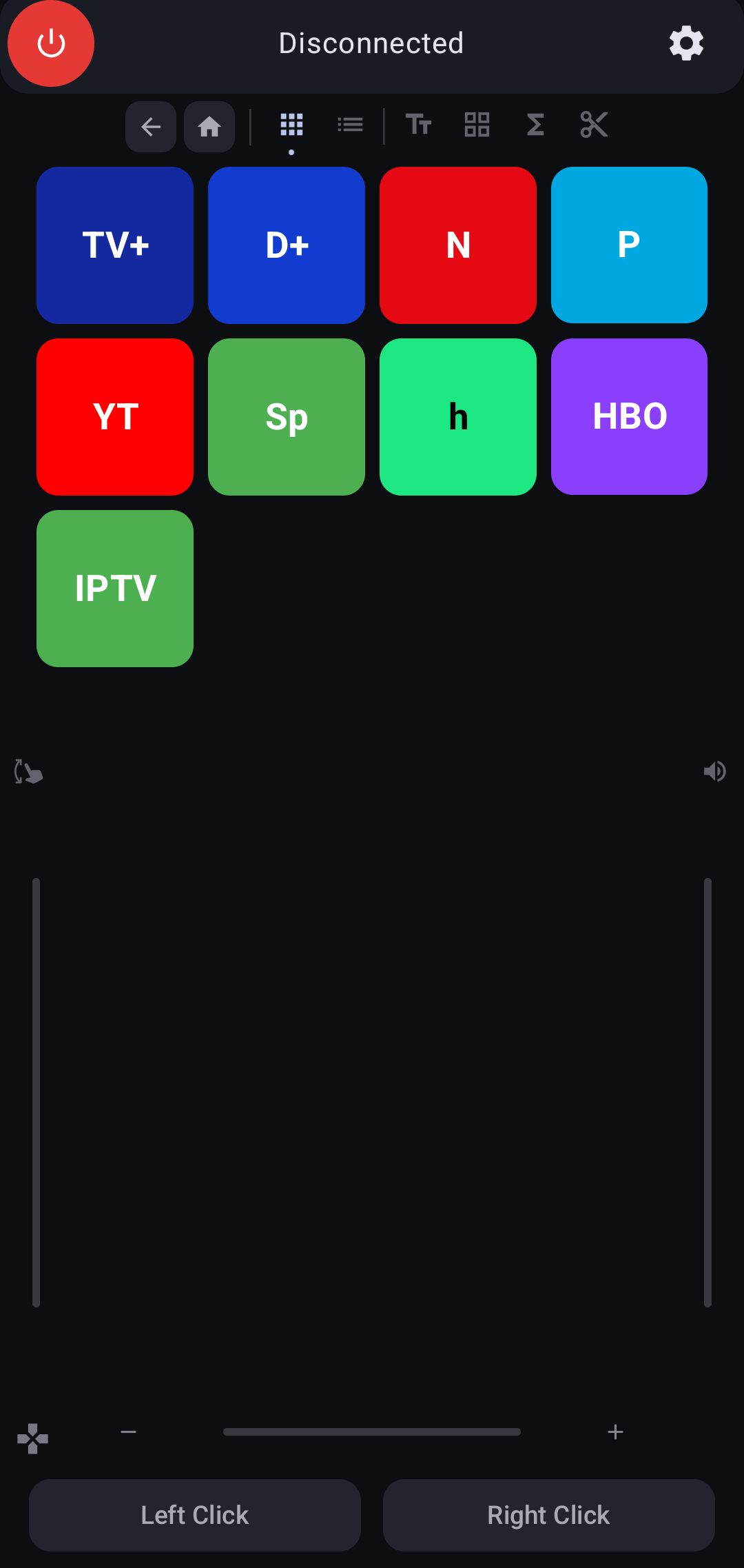
D-Pad Mode
A directional pad for arrow-key navigation, ideal for TVs and media interfaces.
| Button | Action |
|---|---|
| Center | Select / Enter |
| Up/Down/Left/Right | Arrow key navigation |
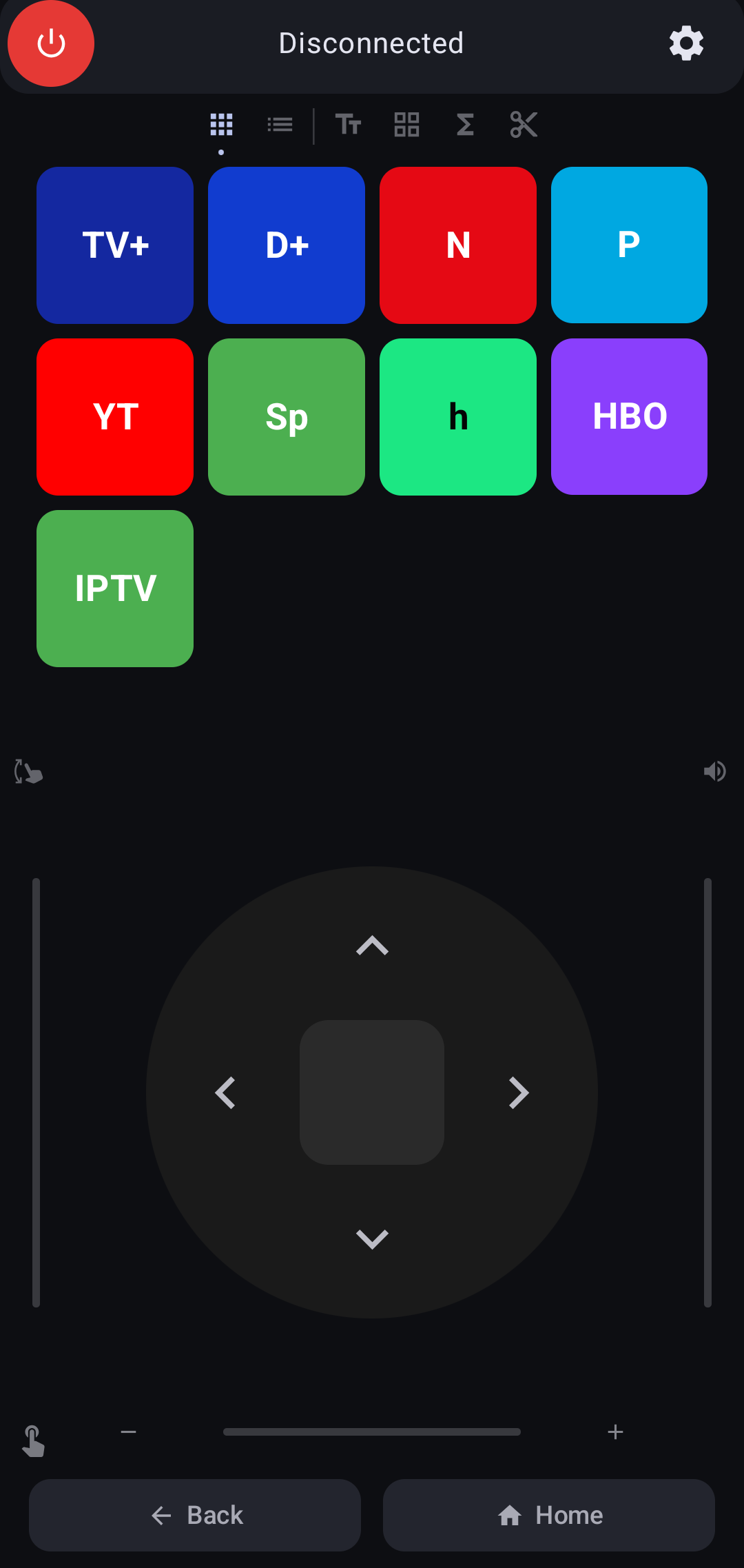
Mouse Buttons
| Button | Action |
|---|---|
| Left Click | Left mouse click. Press and hold, then drag on the touchpad to perform a drag operation. The button changes its label to "Dragging" and becomes highlighted when active. |
| Right Click | Right mouse click (context menu) |
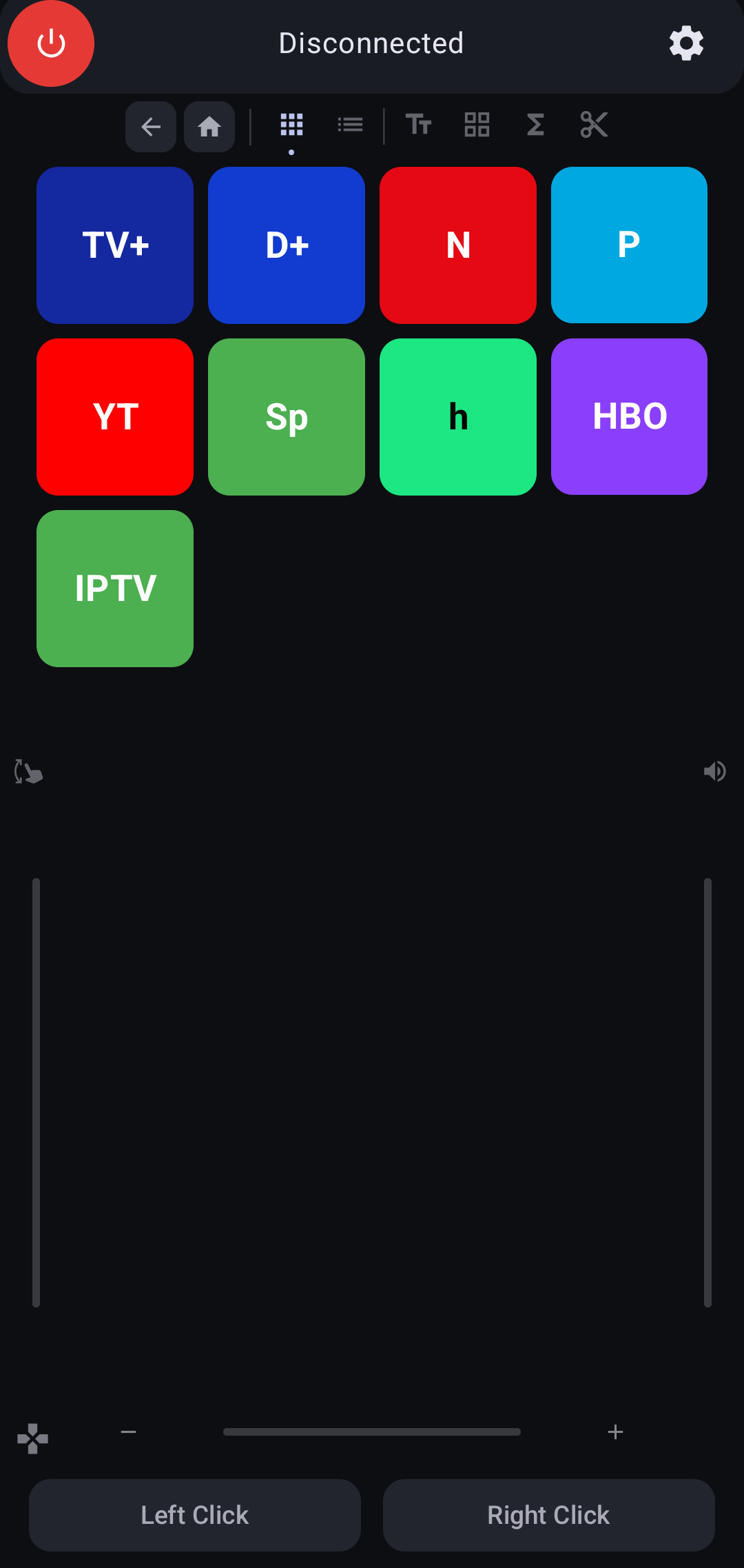
Settings
Tap the gear icon in the top bar to open Settings.
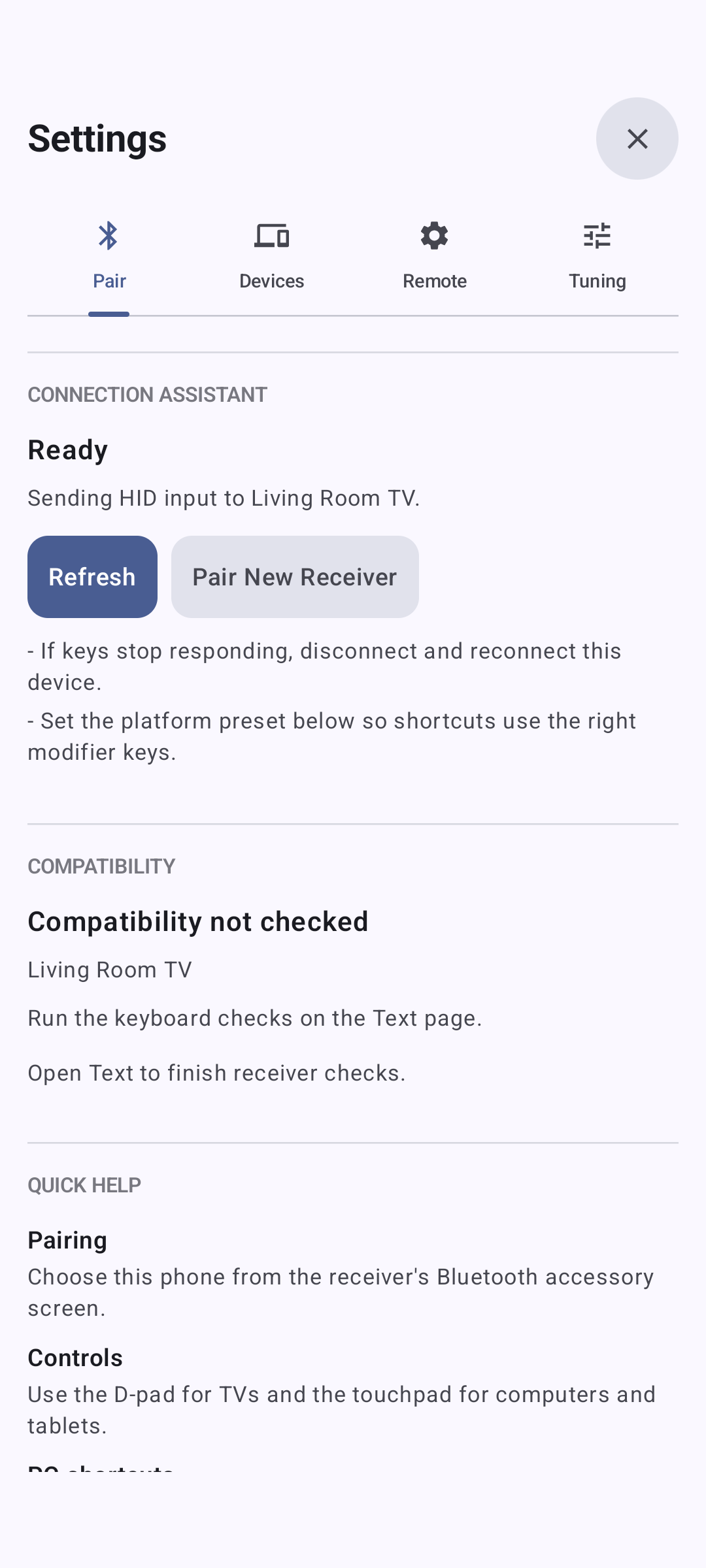
Settings dialog with icon tab navigation and the Connection Assistant tab selected.
Connection Assistant
The Connection Assistant reports whether PhoneRC is ready, connecting, able to reconnect, paired but disconnected, blocked by disabled Bluetooth, or needs a Bluetooth HID reset.
- Open Bluetooth — Open Android Bluetooth settings when Bluetooth is off or a new receiver must be paired
- Refresh — Rescan paired and saved receivers after pairing or changing Bluetooth state
- Connect — Connect a paired receiver that PhoneRC has discovered
- Reconnect — Reuse the saved pairing for the last receiver
- Repair Pairing — Open the system Bluetooth controls so a stale pairing can be removed and created again
Devices
- Refresh — Rescan for paired and saved Bluetooth devices
- Clear Saved — Remove all previously saved device records
- Device list — Shows all discovered devices with connection status. Tap a device to connect, or use the disconnect/remove buttons.
Platform
Select the operating system of your connected device: Mac, Windows, or Linux. This affects which keyboard shortcuts are sent (e.g., Cmd vs Ctrl). The platform setting is saved per device.
Receiver Profile
Choose the profile matching the receiver: Android TV, Samsung TV, Windows, Mac, Linux, Steam Deck, or Tablet. PhoneRC uses the profile to choose suitable controls, shortcuts, starting pages, and compatibility checks for that receiver.
Scroll Settings
| Setting | Description | Range |
|---|---|---|
| Friction | How quickly scrolling decelerates | 0.7 – 0.98 |
| Sensitivity | Cursor responsiveness | 0.1 – 1.0 |
| Max Speed | Maximum scroll velocity cap | 1 – 20 |
| Input Scale | Touch deltas to scroll distance | 0.05 – 1.0 |
| Max Events/sec | Throttle scroll events | 1 – 50 |
| Velocity-sensitive | Physics-based acceleration | On/Off |
Presets: Slow, Normal, Fast, and Reset (restore defaults).
Desktop Companion: System Shortcuts and Unicode Text
The PhoneRC Companion is a desktop helper that sets up and runs system-wide app shortcuts and enables Unicode text input. Install it once to configure both features:
- System-wide App Shortcuts — Sets up shortcut handling for the App Shortcuts page, mapping each PhoneRC shortcut to a website or desktop application
- Unicode Text Input — Receives full Unicode text (including emojis) from the phone's Text Input page via Bluetooth RFCOMM
Prerequisites
- Python 3.8 or later (not required on Windows in AutoHotkey mode — see the Windows notes below)
- An internet connection during installation
- Your phone already paired with the computer via Bluetooth
- macOS: An Apple silicon Mac. The included native helper is currently arm64-only.
- Windows and Linux: Git, used to install the Bluetooth RFCOMM dependency (on Windows, only for the Python listener mode)
One-command installation
The installer downloads the correct package, creates an isolated Python environment, verifies the setup, activates system-wide shortcut handling, starts the Companion, and configures it to start when you sign in.
macOS or Linux
curl -fsSL https://stoicsoft.net/phonerc/downloads/install-companion.sh | shWindows (PowerShell)
irm https://stoicsoft.net/phonerc/downloads/install-companion.ps1 | iexPrefer to inspect the installer first? Download it from the Downloads section, review it, then run it locally.
Once installation finishes, the Companion runs in the background automatically. You do not need to change folders or run python shortcut_launcher.py yourself.
Installation verification
The installer runs this self-test before enabling automatic startup. Installation stops if the result does not include companion supported: yes.
macOS or Linux
~/.local/share/phonerc-companion/.venv/bin/python \
  ~/.local/share/phonerc-companion/shortcut_launcher.py --self-test
Windows (PowerShell)
& "$env:LOCALAPPDATA\PhoneRC Companion\.venv\Scripts\python.exe" `
"$env:LOCALAPPDATA\PhoneRC Companion\shortcut_launcher.py" --self-testPhoneRC Launcher Self-Test
============================================================
Platform: Darwin
pynput: available
companion backend: macos-helper
companion supported: yes
companion detail: Swift helper includes an RFCOMM service skeleton and structured stdio bridge
macOS helper path: /Users/U1/.local/share/phonerc-companion/macos-helper/.build/release/PhoneRCCompanionHelper
macOS helper present: yes
macOS helper runnable: yes
macOS helper stdio bridge: yes
macOS helper IPC protocol: 1
pybluez-compatible bluetooth: missing
python executable: /Users/U1/.local/share/phonerc-companion/.venv/bin/python
pyperclip: available
xdotool: not-applicable
config.json: present
AutoHotkey launcher file: presentRunning the Companion
The installer runs shortcut_launcher.py --both automatically at sign-in, enabling both app shortcut hotkeys and Unicode text. Do not start a second copy manually.
- macOS: Runs as the LaunchAgent
net.stoicsoft.phonerc-companion. Logs are stored in~/.local/share/phonerc-companion/logs/. - Windows: Runs from
PhoneRC Companion.cmdin your Startup folder. - Linux: Runs as the user service
phonerc-companion.servicewhen systemd is available; otherwise, it uses~/.config/autostart/phonerc-companion.desktop.
The following is representative verbose output for troubleshooting, not a command required after automatic installation:
Loaded config from: /Users/U1/.local/share/phonerc-companion/config.json

Registered shortcuts:
------------------------------------------------------------
  CTRL + SHIFT + ALT + 1         -> Apple TV+ (https://tv.apple.com)
  CTRL + SHIFT + ALT + 2         -> Disney+ (https://www.disneyplus.com)
  CTRL + SHIFT + ALT + N         -> Netflix (https://www.netflix.com)
  CTRL + SHIFT + ALT + 4         -> Prime Video (https://www.amazon.com/gp/video/storefront)
  CTRL + SHIFT + ALT + T         -> YouTube (https://www.youtube.com)
  CTRL + SHIFT + ALT + 6         -> Spotify (https://www.spotify.com)
  CTRL + SHIFT + ALT + 7         -> Hulu (https://www.hulu.com)
  CTRL + SHIFT + ALT + 8         -> HBO Max (https://play.max.com)
  CTRL + SHIFT + ALT + I         -> IPTV ()
------------------------------------------------------------

9 shortcut(s) active.
  [companion:listening] RFCOMM service published on channel 1
  [companion:ready] stdio bridge ready on RFCOMM channel 1
  [companion:listening] macOS companion helper started from /Users/U1/.local/share/phonerc-companion/macos-helper/.build/release/PhoneRCCompanionHelper
Companion listener started alongside hotkeys.

Running on: Darwin
Note (macOS): You may need to grant Accessibility access
  System Settings -> Privacy & Security -> Accessibility

Listening for shortcuts... Press Ctrl+C to quit.
How It Works
- When you tap an App Shortcut button (e.g., Netflix), the phone sends a keyboard shortcut (Ctrl+Shift+Alt+N) over Bluetooth HID.
- The companion's hotkey listener intercepts this shortcut and opens the corresponding URL in your default browser.
- When you send text from the Text Input page in Unicode mode, the phone connects via Bluetooth RFCOMM to the companion, which pastes the text using the clipboard.
IPTV Integration Details
- IPTV is configured as a command shortcut rather than a URL in the installed
config.json. - The default command target is Kodi on all supported desktop platforms.
- You can replace the command with any IPTV player executable or script if you prefer another app.
Platform-Specific Notes
macOS
- The installer provisions the included native RFCOMM helper; Xcode and Swift are not required.
- The current helper binary supports Apple silicon Macs only.
- The installer requests Accessibility access. Approve it under System Settings > Privacy & Security > Accessibility so the Companion can paste text and handle global hotkeys.
Windows
- The installer supports two modes and selects one automatically:
- AutoHotkey mode — used when AutoHotkey v2 is already installed. It sets up app-shortcut hotkeys only (no Python or Git required) and does not provide Unicode text input.
- Python listener mode — used when AutoHotkey is not found. It provides both app-shortcut hotkeys and the Unicode RFCOMM Companion, and requires Python 3.8+ and Git.
- Force a mode with the
PHONERC_COMPANION_MODEenvironment variable (autohotkeyorpython). For example, to get Unicode text input even when AutoHotkey is installed:powershell$env:PHONERC_COMPANION_MODE = 'python'; irm https://stoicsoft.net/phonerc/downloads/install-companion.ps1 | iex
Linux
- The automatic installer uses the Python listener, so GNOME
dconfshortcuts are not required. - Install
xdotoolif clipboard paste automation does not work on your desktop. - Some distributions may require Bluetooth development headers to build the RFCOMM dependency. The installer stops before enabling automatic startup if the Companion self-test fails.
Customizing Shortcuts
Edit ~/.local/share/phonerc-companion/config.json on macOS/Linux or %LOCALAPPDATA%\PhoneRC Companion\config.json on Windows to change URLs, add shortcuts, or modify key combinations. Rerunning the installer preserves this file.
{
    "shortcuts": [
        {
            "name": "Netflix",
            "keys": ["ctrl", "shift", "alt", "n"],
            "url": "https://www.netflix.com"
        },
        {
            "name": "IPTV",
            "keys": ["ctrl", "shift", "alt", "i"],
            "command": {
                "darwin": "open -a Kodi",
                "windows": "start \"\" \"C:\\Program Files\\Kodi\\kodi.exe\"",
                "linux": "kodi"
            }
        }
    ]
}
Restart the background Companion after editing so the Python listener reloads the configuration. The separate --install command is only for users who deliberately choose the optional native-hotkey setup.
Companion Text Input Limitations
- Unicode Companion mode uses the clipboard to paste text, so it cannot type into secure fields (e.g., password prompts). Use HID Keyboard mode for those.
- If the companion cannot connect, PhoneRC falls back to HID Keyboard mode automatically.
Uninstalling the Companion
The uninstaller stops the running Companion, removes its automatic-startup entry, and deletes the install directory. On Windows it also stops the AutoHotkey shortcut script if that mode was used; AutoHotkey itself is left installed.
macOS or Linux
curl -fsSL https://stoicsoft.net/phonerc/downloads/uninstall-companion.sh | shWindows (PowerShell)
irm https://stoicsoft.net/phonerc/downloads/uninstall-companion.ps1 | iexIf you set a custom PHONERC_COMPANION_HOME, run the uninstaller in the same environment so it removes the correct directory. Reinstalling also cleans up a previous install first, but preserves your config.json; a full uninstall removes it.
Companion Downloads
Use the installer for a complete setup. The package archives are also available separately for inspection and advanced manual use; the installers consume these same archives and handle their platform-specific layout.
macOS
Automatic installer for macOS and Linux
Download InstallerUninstaller for macOS and Linux
Download UninstallerPackage archive with the Apple silicon helper and RFCOMM support
Download PackageWindows
Automatic PowerShell installer
Download InstallerPowerShell uninstaller
Download UninstallerPackage archive with AutoHotkey and batch helpers
Download PackageLinux
Automatic installer for macOS and Linux
Download InstallerUninstaller for macOS and Linux
Download UninstallerPackage archive with GNOME and desktop integration
Download PackageCustomizing Buttons
Many buttons on PhoneRC can be customized by long-pressing them.
| Page | Customizable Buttons |
|---|---|
| App Shortcuts | All built-in app launcher buttons, plus any custom buttons you add from the + tile |
| Channel Controls | Subs, Info, and channel buttons |
On the App Shortcuts page, you can also tap the + tile to create a new shortcut button.
How to Customize
- Long-press any customizable button, or tap the
+tile on the App Shortcuts page to create a new one. - In the dialog that appears:
- Label — Enter a custom name or emoji
- Key — Type the key name (A-Z, 0-9, F1-F12, Enter, Space, etc.). Auto-complete suggestions appear as you type.
- Modifiers — Comma-separated list:
Ctrl,Shift,Alt,Cmd,RCtrl,RShift,RAlt,RCmd - Color — For custom app buttons, choose one of the built-in swatch colors: Gray, Red, Blue, Green, Orange, Purple, Teal, or Pink.
- Tap Save to update an existing button, or Add to create a new custom app shortcut.
- For custom app buttons, use Delete Button to remove them from the grid.
Example: To make a button send Ctrl+Shift+Alt+S for Spotify: Label = Spotify, Key = S, Modifiers = Ctrl,Shift,Alt
Customizations are saved and persist between app sessions, including the selected color for custom app buttons.
Troubleshooting
Phone won't pair
- Make sure Bluetooth is enabled on both devices.
- On the target device, open its Bluetooth keyboard, accessory, or input-device screen and start scanning for new devices.
- Look for the Android phone's Bluetooth name, not "PhoneRC."
- In PhoneRC, open Settings → Connection Assistant, tap Open Bluetooth if needed, and tap Refresh after pairing.
- If pairing is stale, remove the phone entry from the receiver, remove the receiver from Android's paired-device list, toggle Bluetooth off and on, reopen PhoneRC, pair again, and tap Refresh.
- On Samsung TVs, accept the Bluetooth keyboard prompt on the TV if one appears.
"Disconnected" in the top bar
- Open Settings → Connection Assistant and tap Refresh.
- If the receiver appears, tap Connect or Reconnect; automatic reconnection is not guaranteed on every receiver.
- Make sure the target device's Bluetooth is on and within range.
- Check that your Android phone's Bluetooth name is still listed as a paired keyboard, mouse, input device, remote, or accessory on the target.
- If reconnection continues to fail, use Repair Pairing and remove the saved pairing on both devices before pairing again.
Keys not working correctly
- Check the Platform setting in Settings. Make sure it matches your target device's OS (Mac/Windows/Linux).
App shortcuts don't open websites
- The App Shortcuts page needs the Companion running on the target computer. See Desktop Companion.
- Run the platform-specific self-test command in Installation verification.
- On macOS, review
~/.local/share/phonerc-companion/logs/companion-error.log. If it says the process is not trusted, grant Accessibility access under System Settings > Privacy & Security > Accessibility, then restart the Companion or sign out and back in.
IPTV/Kodi doesn't launch
- Verify Kodi is installed on the target computer.
- Check the installed
config.jsondescribed under Customizing Shortcuts and confirm the platform command path is valid. - Restart the background Companion after changing the configuration.
Unicode text not working
- Make sure the automatically installed background Companion is running.
- Switch to Unicode Companion mode using the mode toggle on the Text Input page.
- Run the platform-specific self-test command in Installation verification and confirm it reports
companion supported: yes. - If the companion can't connect, the app falls back to HID Keyboard mode (ASCII only).
Scrolling feels too fast/slow
- Open Settings and adjust the Scroll settings, or try a preset (Slow/Normal/Fast).
Support & Feedback
Found a bug or have an idea for improving PhoneRC? Visit the public PhoneRC issue tracker to search existing reports, report a problem, or request an enhancement.
Issue reports are public. Do not include passwords, authentication tokens, Bluetooth addresses, device serial numbers, private logs, or other sensitive information.
Join the Open Beta
PhoneRC is a paid application on Google Play. To help us test upcoming improvements, we are distributing a limited pool of free promotional codes for the current open beta. Claims are limited per browser and network.
Complete the verification below when you are ready to redeem and test the app.
Revealing a code permanently assigns it to this browser. If you leave or refresh the page, return with the same browser to recover your assigned code.
Privacy Policy
PhoneRC does not collect, store, or transmit any personal data. The application operates entirely locally on your device. All Bluetooth permissions are used solely for HID functionality.